Tracking Actual Execution Time with Stopwatch Timer
Stopwatch helps track the Actual Attended Time spent on test case executions. It is especially useful for tracking executions that continue over multiple sessions or days. The Timer provides key time-tracking controls, allowing you to start, pause, resume, and stop the timer as needed.
Note
The system saves time incrementally.
Each time you stop and restart the timer, the system updates the cumulative total.
Accessing the Timer
You can access the timer on the Test Execution Screen from the Test Suite Module.

To access the stopwatch timer, perform the following steps:
Go to the Test Execution Screen.
Locate the Actual Attended Time (mins) column.
Hover over the cell to view the stopwatch icons.
You can record the time through:
Manual Entry: Click and enter the time.
Stopwatch Timer: Start the timer to auto-calculate time.
The stopwatch appears for each test case execution run when you hover over the cell in the Actual Attended Time column on the execution screen.
Stopwatch Timer Actions and Icons
Icon | Action | Description |
|---|---|---|
| Start Timer | Begins recording time. |
| Pause Timer | Temporarily halts the timer. Time remains visible in a different color. |
| Resume Timer | Resumes time from where it was paused. |
| Stop and Save | Stops the timer and saves the recorded time in HH: MM: SS format. |
| Edit Time | Allows manual modification of recorded time. |
| Reset Time | Resets the saved time to 00:00 after confirmation. The reset button only works on the saved time. |
| Cancel Timer | Discards paused time and reinstates the saved time. |


Available Timer Actions
Start Timer
You can start the timer automatically using the auto-timer or manually using the manual timer.
Note
For Automatic timer, you must enable Automatically start the timer when users commence the execution of any step in the test case from Execution Status under Customization.

Manual: You can start the timer manually, if you have permissions and manual entry is not restricted.
Automatic: The timer starts automatically when you update any test step.
Pause Timer
You can pause the timer manually by using the Pause button and resume the timer at the exact point where you paused it.

Note
The system counts paused time as actual time only after you click Stop.
The system saves paused time per user and does not display it to other users.
The system retains the paused time across sessions unless you explicitly cancel it.
The timer auto-pauses when you execute another test case.
Paused time maintains its state even when you:
Switch to another test case
Begin execution of another test case
Switch to another screen or module
Log out (manual or auto-logout)
Refresh the screen
Close the tab or window or use the browser back button.
Stop Timer
You can manually stop the timer at any point. Also, when a test step changes the test case status, the system auto-stops the timer.

Cancel Timer
You can cancel the timer only when it is running or paused. Cancelling the current session’s paused time reverts the time to the previously saved time.

Timer Display
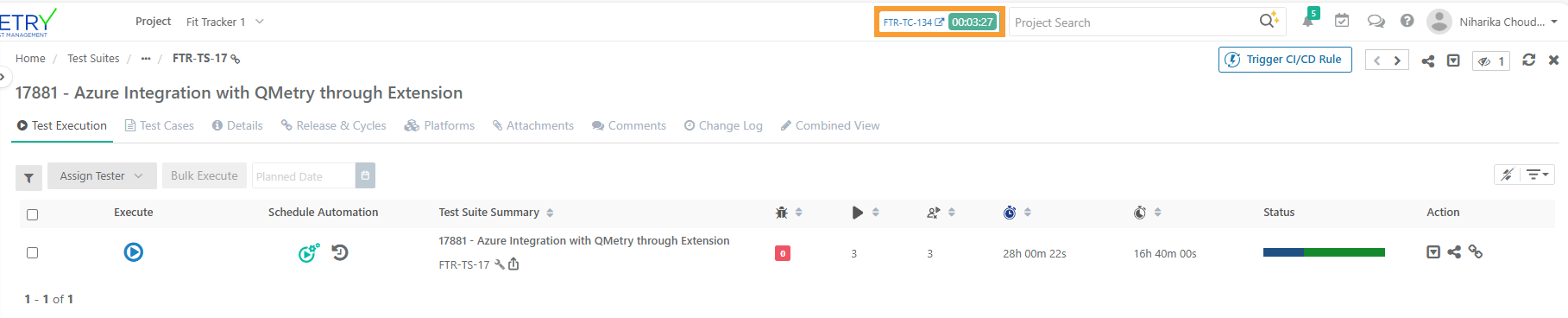
You can view the running timer at the top of the screen, even after navigating away from the test execution screen. It shows the test suite and test case key as clickable links.
Note
The system tracks each user’s timer separately.
Your timer is not visible to other users.
Multiple users can work on the same test case execution.
The system adds Saved Time from each user incrementally.
Example: User A saves 7 minutes; User B saves 9 minutes → Total = 16 minutes.
On re-login, you can resume the paused timer manually.
Suppose the timer shows 3 minutes. The user starts the timer, works for 2 minutes, and then pauses it. The paused duration (2 minutes) is highlighted in a different color to indicate the timer is paused.
At this point, the user can:
Resume the timer, which continues from the paused time (2 minutes), or
Stop the timer, which saves the time incrementally.
Cancel the timer, which discards the current session's recorded time and reverts to the last saved value (3 minutes).
If stopped, the total time recorded will be 5 minutes—combining the previously saved 3 minutes and the newly recorded 2 minutes.
Timer Settings
You can configure timer settings to streamline time tracking during test case executions.
A. Timer Auto-Stop Settings
Project administrators can configure the timer to auto-start when a tester begins executing any step in a test case. The admin can also restrict users to record actual attended time only through the timer on the execution screen.
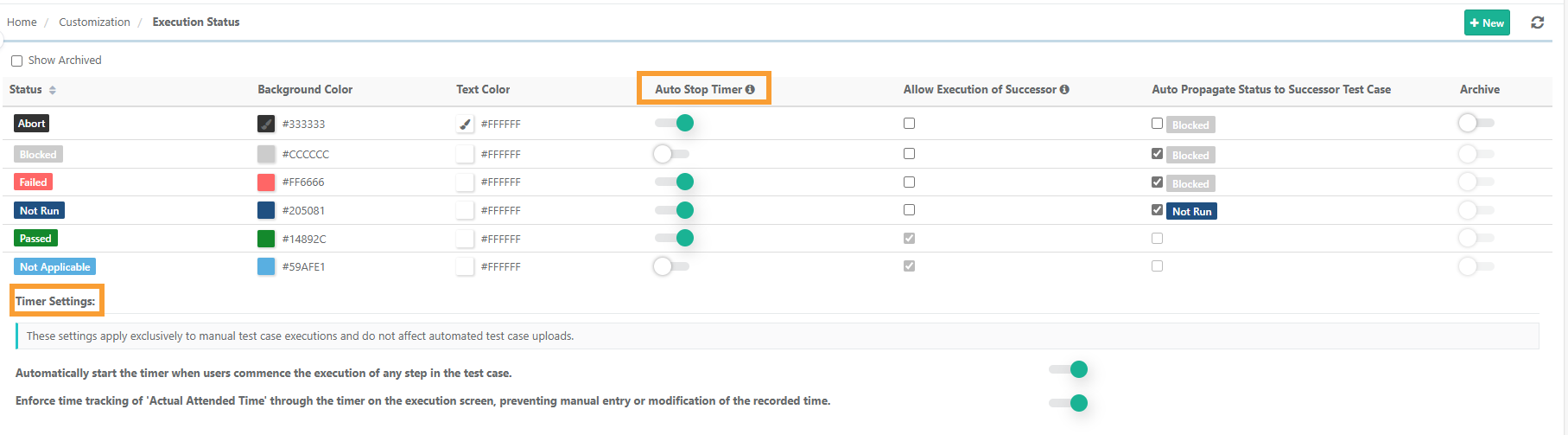
To set project-level settings, perform the following steps:
Go to Customization.
Select Execution Status.
Configure Auto Stop Timer for Execution Statuses.
B. Timer Settings for Manual Test Executions

To configure timer settings for manual test executions, perform the following steps:
Go to Customization.
Select Execution Status.
Scroll down to Timer Settings section.
Setting | Default | Behavior |
|---|---|---|
Automatically start the timer when users commence the execution of any step in the test case. | Off | Timer starts automatically when you update the Test Step Execution Status. |
Enforce time tracking of Actual Attended Time through the timer on the execution screen, preventing manual entry or modification of the recorded time. | Off | Disables manual time entry; actual time must be recorded using the timer. |
C. Project Level Setting
Note
Enable Derive Test Case Execution status from Test Case step status in Project Settings.
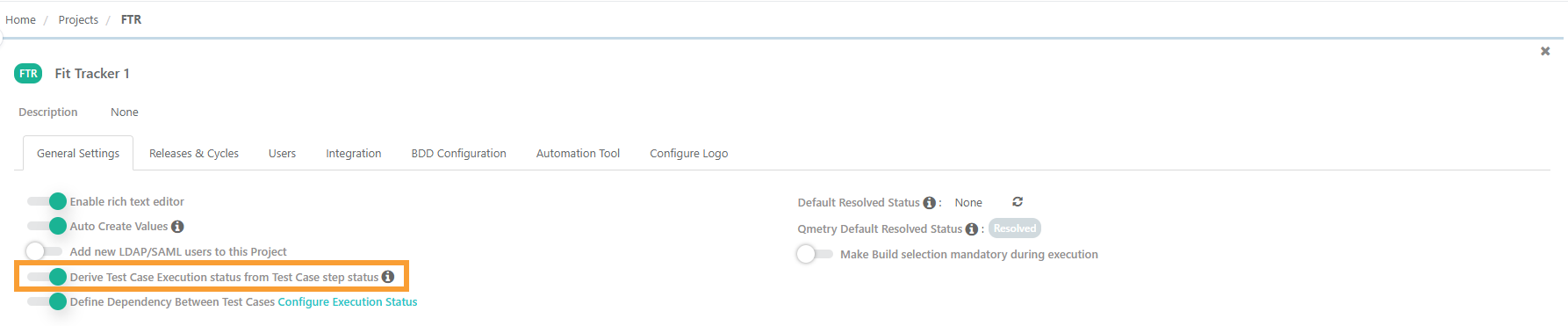
Impact of Derive Execution Status Setting on Timer
Setting | Test Step Status | Test Case Status | Stopwatch Behavior |
|---|---|---|---|
Disabled | Failed / Blocked | Unchanged | Stopwatch continues running |
Enabled (Default) | Failed / Blocked | Automatically set to Failed / Blocked | Stopwatch stops automatically |
Enabled with Custom Execution Status Configuration (Stopwatch linked to specific status changes) | As per configured status | As per configured status | Stopwatch stops based on custom setup |