Importing Issues from Excel
Import multiple sheets from an Excel file into Issue Module, with issues appearing in the same order as they appear in the file.
If Jira is integrated with , the Issues Module in becomes unavailable. To sync issues from JIRA, refer to Sync Requirements and Issues from JIRA.
Note
The Excel file must not exceed 10 MB.
Use the official import template to ensure your data is correctly formatted.
All sheets must follow the same structure and column names if importing from multiple sheets.
Preparing Your Excel File
Format your data according to the below provided template.
Importing Issues from Excel
To import issues from Excel, perform the following steps:
Go to the Issues Module.
Click the Cog (⚙️) icon and select Import.
It opens the Import wizard showing the following three stages of import.
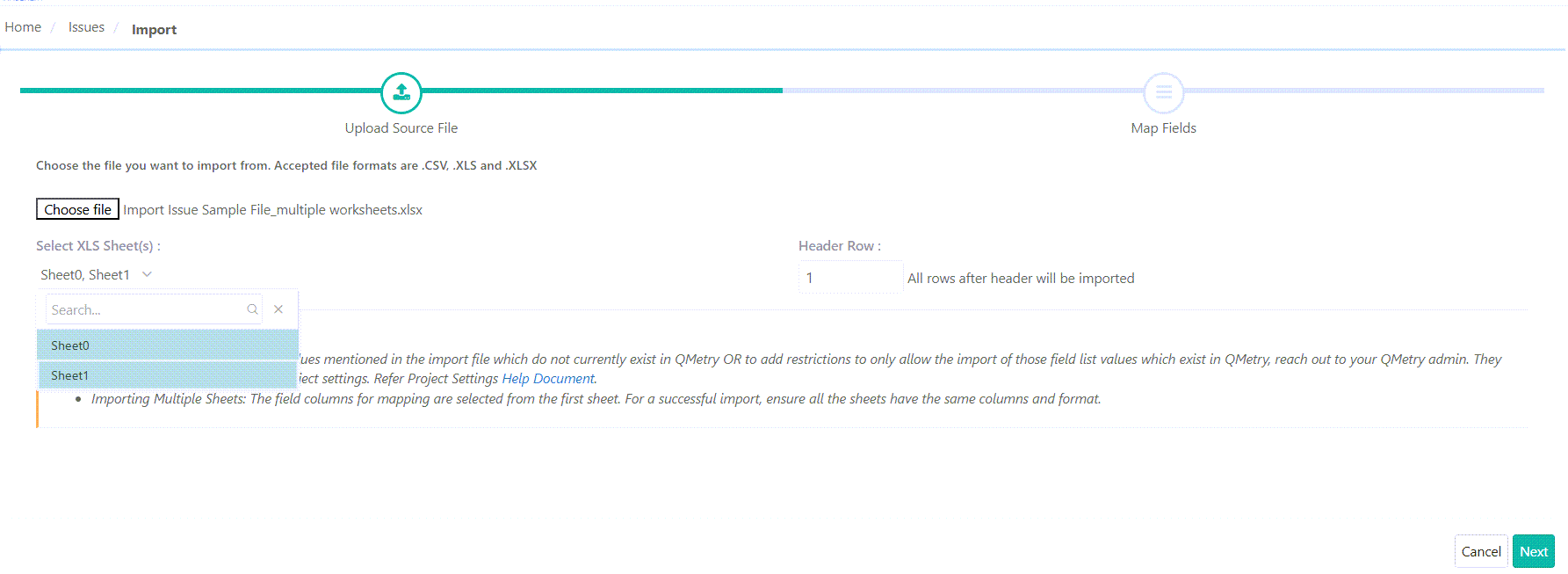
Step 1: Upload Source File
Click Choose File to browse and upload the file. Select at least one sheet in the Excel file.
Note
If an “Invalid file” message appears while uploading an Excel file, open the file in Microsoft Excel. Save it as an “Excel Workbook” with a new name, and then try importing the new file.
Select XLS Sheet: The drop-down displays all sheets available in the Excel file. You can select one or more sheets for import. Select at least one sheet that contains the requirements.
Importing Multiple Sheets: The first sheet sets the field columns for mapping. Ensure all sheets share the same columns and format.
Header Row: Enter the row number to set it as the header row. The system imports all rows below it.
Step 2: Mapping the Fiolds
Fields in the Excel appear under Sheet Field, and system fields appear under field. Map each Excel field to its corresponding field. The system highlights mandatory fields in red.
Import with Warning: Select this to import requirements with a Summary longer than 255 characters. The system automatically truncates the Summary to 255 characters. If the checkbox is not selected, the import fails when a requirement exceeds the character limit.
To remove a specific field mapping, open Field and select the Select Field option.
Step 3: Save Mapping
Save the field mapping to reuse it during future re-imports with the same format.
Click Save Map, enter a name for the map, and save it. You can use the saved map in future imports.
To reuse the mapping, select the saved map. The system applies the saved field mapping.
Auto Map: Auto-map system and custom fields by using keywords in the header names.
My Mappings: The drop-down displays all mappings saved by the logged-in user during requirement imports. The selected map name indicates the mapping currently in use.
Click Finish.
Click to proceed.
Track import progress in the notification window on the application header.