Exporting Test Executions
Generate validation documentation for compliance and regulatory purposes by exporting test executions in PDF. Share test case details with support or other teams by exporting the executions in Word.
Note
Permissions and Configurations
You must have the Integration app enabled.
Get Export permission for the Test Suite module.
Admins can manage role-based user access from Roles.
Export one or more test executions from:
Test Suite Execution Screen
Test Suite Default View Screen
Test Suite Detail View Screen
Export from Test Execution Screen
To export a test suite from the execution screen, perform these steps:
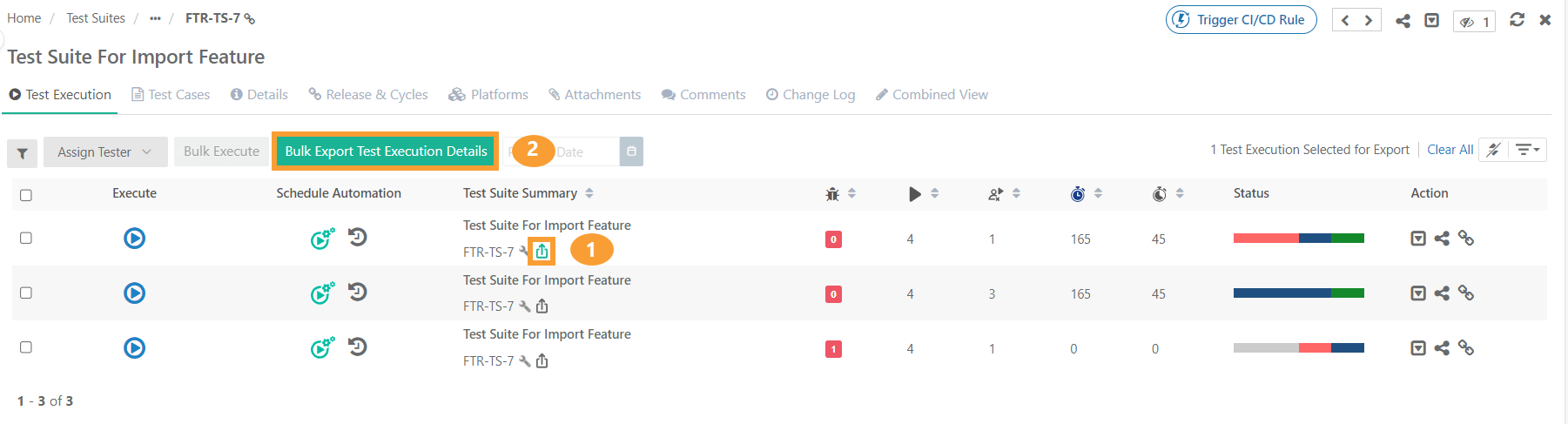 |
Go to the Test Suite Detail Page and select the Test Execution tab.
Click the PDF icon under Test Suite Summary.
Click .
Note
You can select a maximum of 5 test executions at a time.
Export Test Execution
Export test executions in Excel and PDF.
Export Test Execution to Excel
To Export Test Executions, perform these steps
Go to the Execution Screen.
Click the Cog (⚙️) icon.
Select Export.
Select Test Execution Export Options:
Export Test Execution with steps in multiple rows: It will export test cases with steps arranged in multiple rows of excel sheet.
Export Test Execution with steps in single row: It will export test cases with steps included in a single cell.
Export Test Execution without Steps: It will export test cases without steps.
Select Field Export Options:
Visible Fields: Select the option to export only visible fields on the screen. The export will exclude the columns which are hidden.
All Fields: Select the option to export all the fields irrespective of whether the columns are visible or hidden.
Select Export Format: XLSX or CSV,
Click Export.
Export Test Execution to PDF
Refer to Export from Execution Screen.
Export from Test Execution Screen Default View
To export test suites from the Test Execution Screen Default View, perform the following steps:
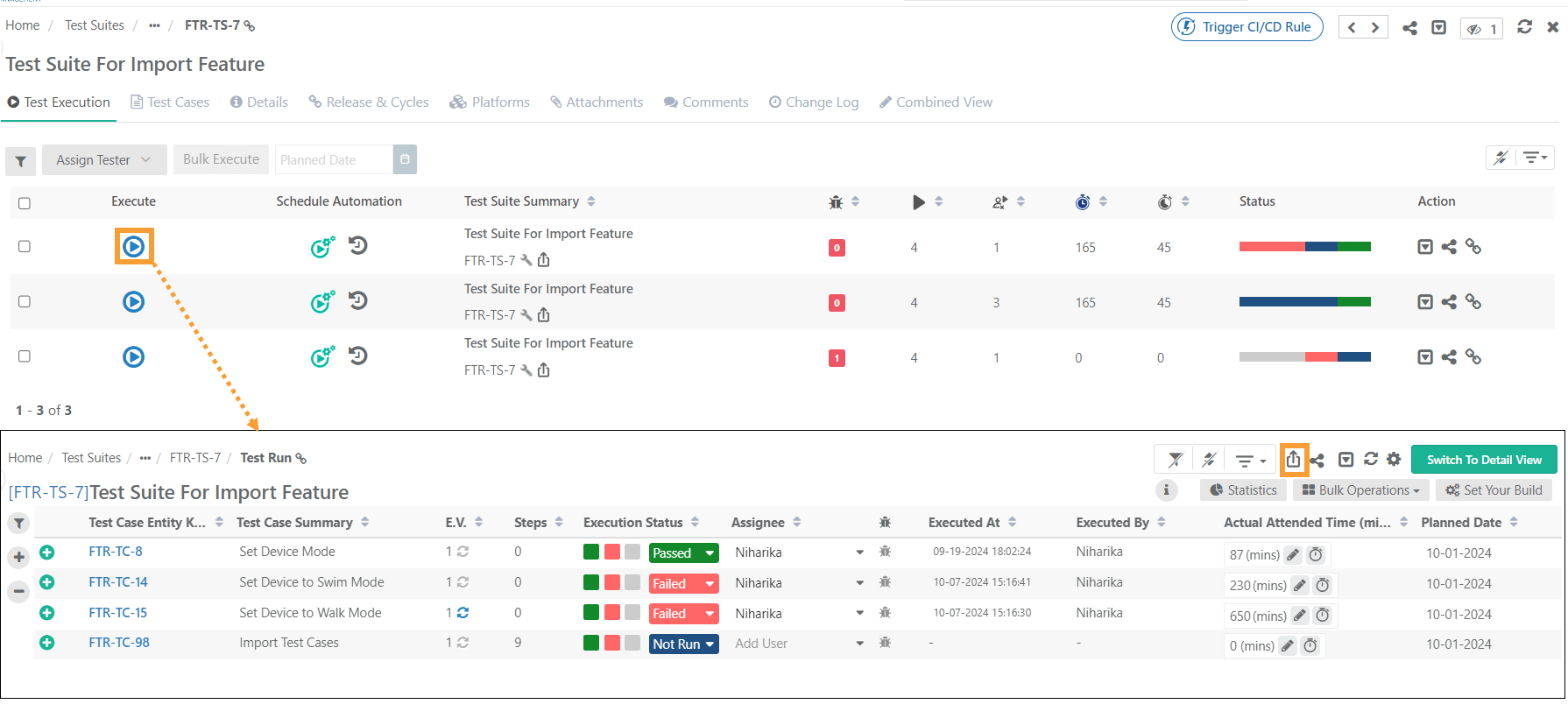 |
Go to the Test Suite Default View Screen.
Click the Cog (⚙️) icon.
Select .
Customize Test Suite Details for Export.
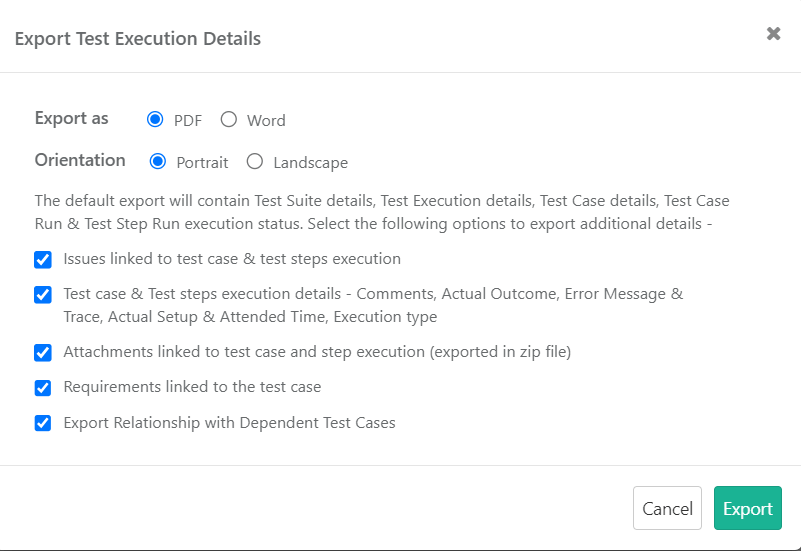
Set Page orientation: Portrait or Landscape.
Default export contains test suite details, test execution details, test case details, test case run, and test step run execution status.
Select from the following options to export additional details:
Test Execution Approval and Closure summary (only for eSignature-enabled projects).
Issues linked to Test Case and Test Steps Execution.
Test case and Test Step Execution details like Comments, Actual Outcome, Error Message and Trace, Actual Setup and Attended Time, Execution Type.
Attachments linked to the test case and step execution. If you select this option, the system exports PDF and attachments in a zip file.
Requirements linked to the Test Case.
Export Relationship with Dependent Test Case
These options allow for customization based on project's needs when exporting test execution details.
Export from Test Execution Detail View
Export selected test cases and steps from the test execution detail view in Excel (XLSX) or CSV format. Select specific fields using the feature. This allows the QA team to review and update test cases locally, then sync the changes back before continuing with execution.
To Export Test Executions and Test Cases from the detail view, perform the following steps:
Go to the Test Execution Screen.
Click and switch to Test Execution Detail View.
Click the Cog (⚙️) icon and select .
The Test Execution Export Configuration screen presents the following options.
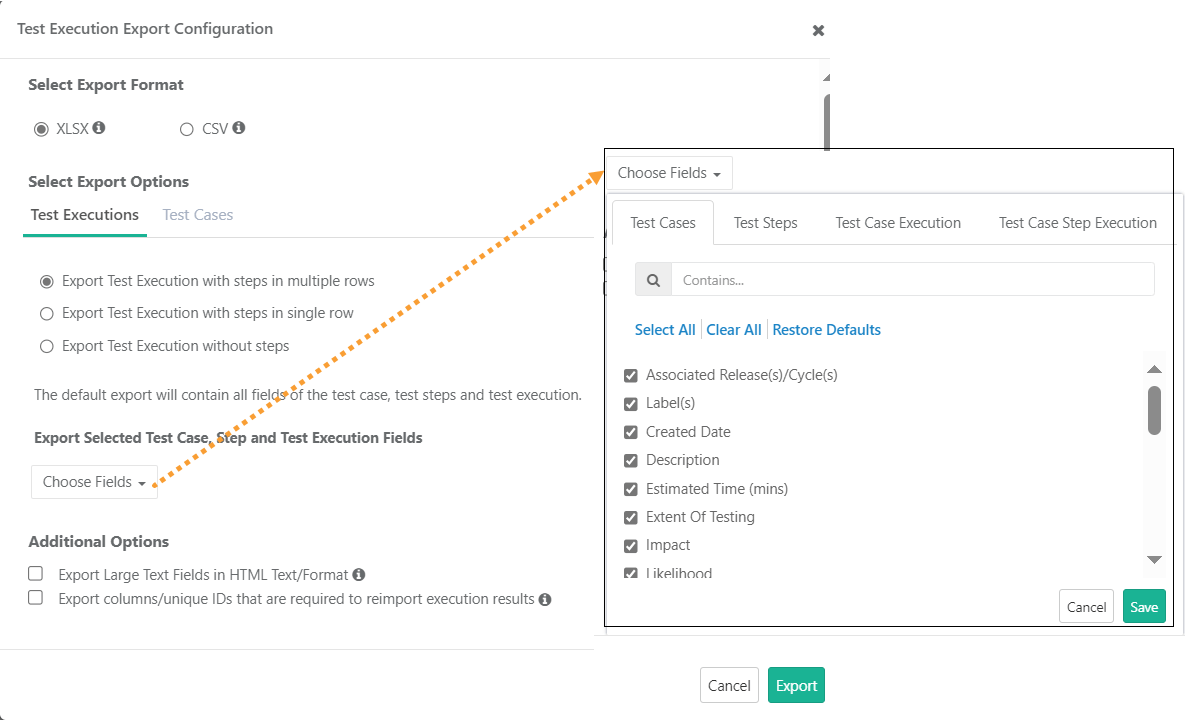
Export in Excel or CSV: Export the data in XLSX (Excel) or CSV format. The file name follows the format: "Test Suite Key + Release + Cycle + Platform."
Export Test Executions
Export Test Executions with Steps: Export test execution details, including steps, either in multiple rows or in a single row.
Choose Field: Select specific test cases, test case executions, test steps, and test step execution fields for exporting.
Export Large Text Fields in HTML Text or Format: Enabling this option ensures that the system exports all large text fields in HTML text format.
Export columns or unique IDs that are required to reimport execution results: Enabling this option exports test case executions in a re-importable format, including all required columns and unique IDs for .
Export Test Cases
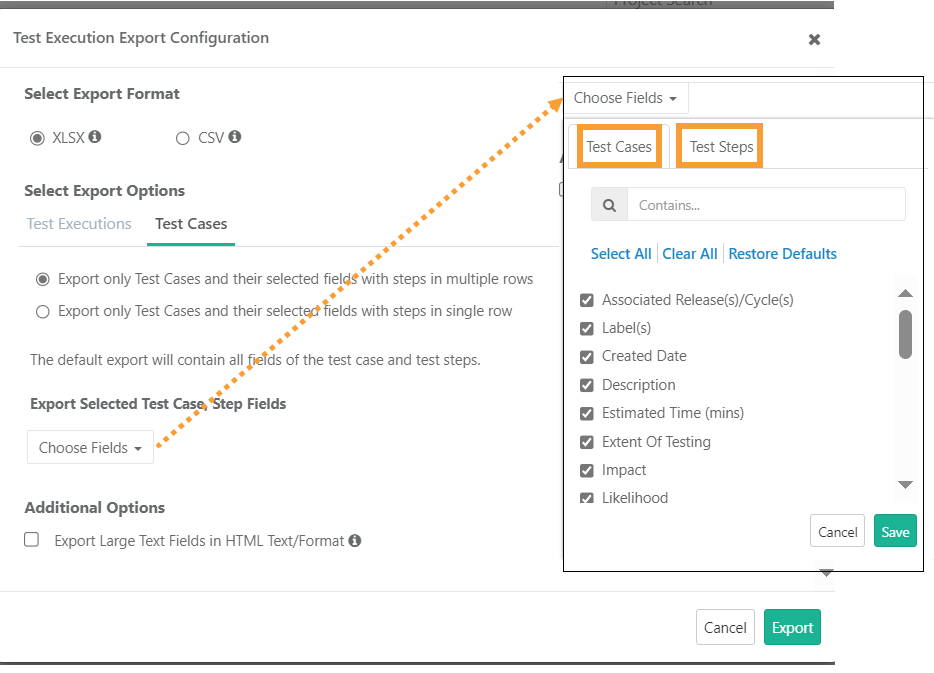
Export in Excel or CSV: Export test cases in XLSX (Excel) or CSV format. The file name follows the format: "Test Suite Key + Release + Cycle + Platform."
Export Test Case and Selected Fields with Steps: Export the details of linked test cases for the selected execution. Export the details in a single row or multiple rows.
Choose Field: Select specific test cases and test step fields for exporting.
Export Large Text Fields in HTML Text Format: The large text fields are exported as plain text if this option is left unchecked.