Copy Test Suites
Reuse an existing Test Suite for different configurations without recreating it through the following options:
Copy an individual Test Suite
Copy multiple Test Suites in bulk
Copy all Test Suites within a folder
Each method supports the following options:
Copy with Existing Release and Cycle
Copy by linking to a New Release and Cycle
Copy by linking to a New Release, Cycle and Platform
Copying Individual Test Suite
Go to the Test Suites module.
Click the Cog (⚙️) icon for the Test Suite to copy and select Copy.
Select:
Copy Existing Release and Cycle: Copies with the current release and cycle information.
Link New Release and Cycle: Copies the Test Suite but links it to a new release and cycle.
Link New Release, Cycle and Platform: Copies the Test Suite and links it to a new release, cycle, and platform.
Complete the required fields and additional options.
Warning
The system does not copy the following parameters: Linked Issues, Execution Type, Executed Build, Execution Attachments, Comments, Actual Attended Time, Actual Setup Time, Actual Outcome, Error Message, Trace.
Note
If e-Signature is enabled:
Only the latest approved and unarchived versions of Test Cases are copied.
The following fields are reset automatically:
Assignee
Planned Date
Execution Status→ set to Not Run
Users cannot deselect or modify these resets.
Common Options Across All Copy Methods
Select Folder: Select the destination folder for the copied Test Suite.
Copy Platforms: Copies platform information from the original suite.
Copy the Latest Version of Linked Test Cases:
No (Default): Keeps the same linked version of Test Cases from the source Test Suite.
Yes: Updates to the latest available unarchived version.
When selected, the Assignee, Planned Date, and Execution Status are automatically reset to Not Run.
For eSignature-enabled projects, the latest approved unarchived version is always copied.
Reset Assignee: Clears assignee information.
Reset Planned Date: Clears planned execution dates.
Reset Execution Status to "Not Run": Resets execution status for all Test Cases.
Copy Existing Release and Cycle
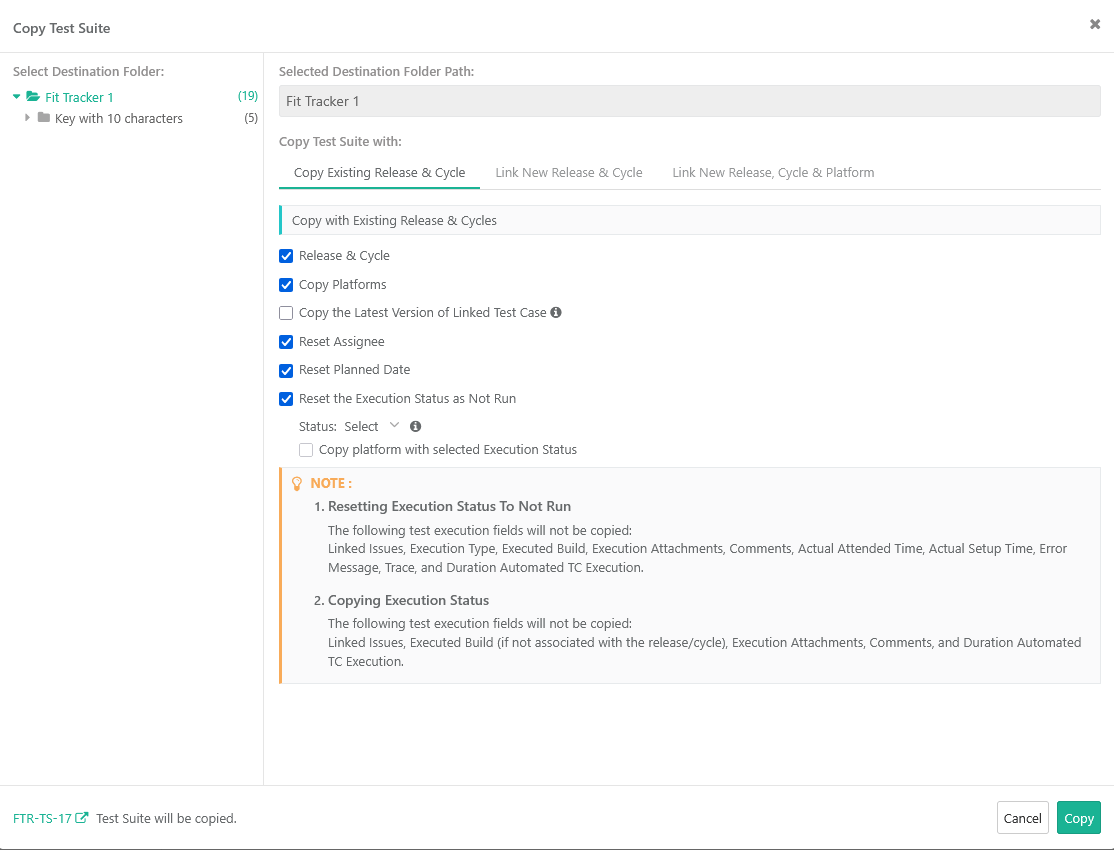 |
Create a duplicate Test Suite with its current Release and Cycle values.
It is useful for creating another version of the suite under the same testing context.
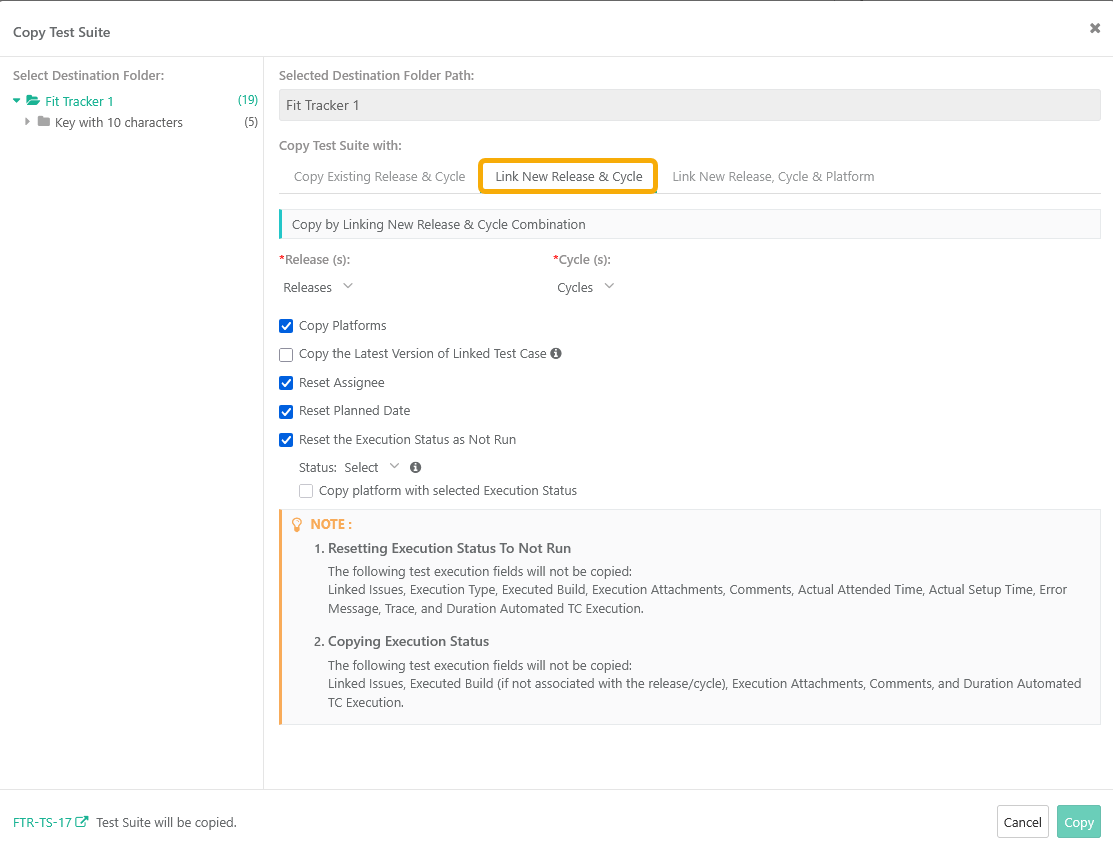
Link New Release and Cycle
 |
Aspect | Description |
|---|---|
Mandatory Fields | Release and Cycle |
Copy Platform(optional) | Yes (default): Copies all linked platforms (archived and unarchived) to the new suites. |
Copy Latest Version of Linked Test Cases (optional) | No – Keeps the currently linked approved version of the test cases in the new test suite (default).Yes – Updates the linked test cases to their latest unarchived approved version in the new test suite. |
Reset Assignee | Resets the assignee |
Reset Planned Date | Resets the planned date |
Reset the Execution status as Not Run | If you choose not to reset the execution status, you must select both the Release and Cycle. |
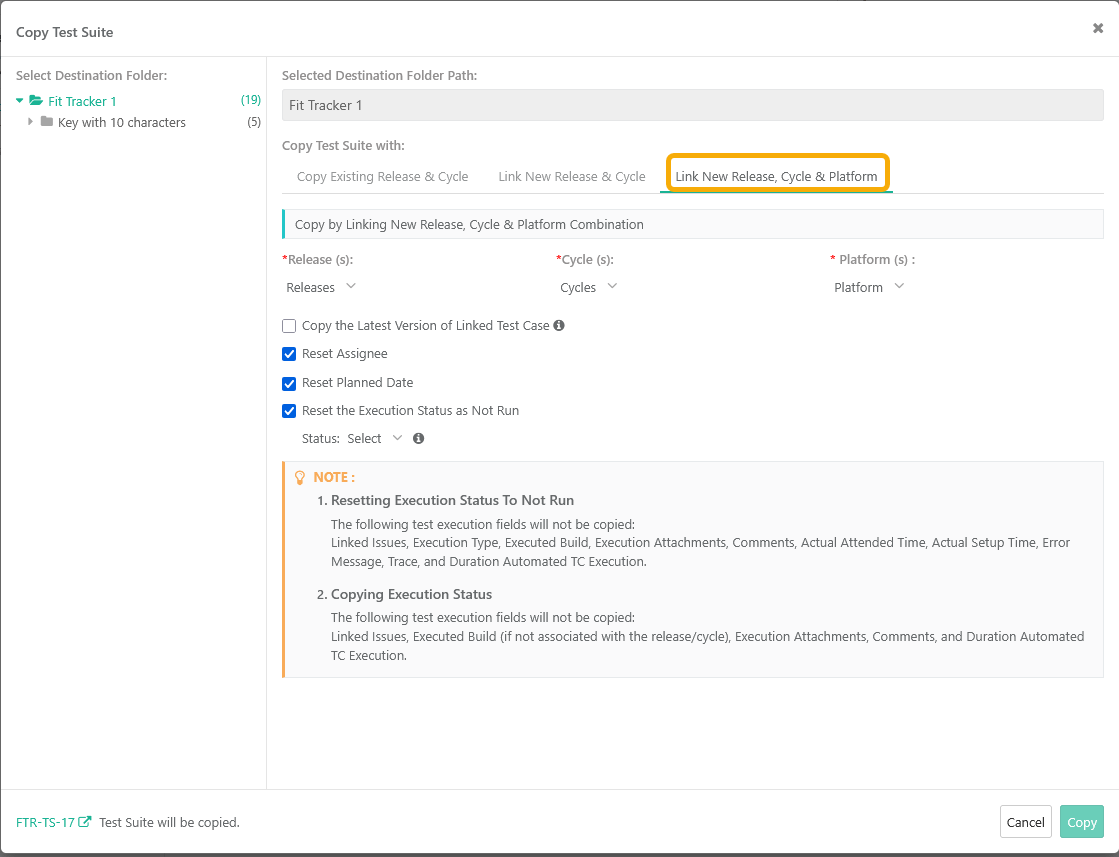
Link New Release, Cycle and Platform
 |
Note
If you choose not to reset execution status, you must select an existing Release–Cycle–Platform combination.
Use this method to copy a Test Suite into a new Release, Cycle, and Platform combination.
Mandatory fields: Releases, Cycles, Platforms.
Additional options: Copy Latest Version of Linked Test Cases.
For eSignature-enabled projects, executions in the new Test Suite are always created in Review state.
Copying Test Suites in Bulk
To copy test suites in bulk, perform the following steps:
Go to the Test Suites module.
Click the Cog icon and select Bulk Operations.
Select Copy.
Select Test Suites (or select all) and click Next.
Select the destination folder and choose one of the copy options:
Copy with Existing Release and Cycle
Copy by Linking New Release and Cycle
Copy by Linking New Release and Cycle
Note
If e-Signature is enabled:
Only the latest approved and unarchived versions of Test Cases are copied.
The following are always reset automatically:
Assignee
Planned Date
Execution Status set to Not Run.
Users cannot deselect or modify these resets.
Copy by Existing Release and Cycle
Aspect | Description |
|---|---|
Mandatory Fields | Release and Cycle (only active and unarchived that are linked with the test suite). |
Optional Setting 1: Copy Platform |
|
Optional Setting 2: Copy Latest Version of Linked Test Cases |
|
Automatic Resets |
|
Folder Options | Add Existing Folder or Add a New Folder. |
Copy by Linking New Release, Cycle and Platform
Aspect | Description |
|---|---|
Mandatory Fields | Release, Cycle and up to three active platforms. |
Copy Latest Version of Linked Test Cases (optional) |
|
Automatic Resets |
|
Folder Options | Add Existing Folder or Add a New Folder. |
Copy by Linking New Release and Cycle
Aspect | Description |
|---|---|
Mandatory Fields | Release and Cycle (only active and unarchived). |
Optional Setting 1: Copy Platform | Yes (default): Copies all linked platforms (archived and unarchived) to the new suites. No: Creates new suites without any platform link. |
Optional Setting 2: Copy Latest Version of Linked Test Cases |
|
Automatic Resets |
|
Folder Options | Add Existing Folder or Add a New Folder. |
Reset the Execution status as Not Run | If you choose not to reset the execution status, you must select both the Release and Cycle. |
Platforms | Release and Cycle | Reset to Not Run | Reset Assignee | Execution Status | Copy platform with selected Execution Status | Select Existing Release - Cycle for Mapping | What will be copied? |
|---|---|---|---|---|---|---|---|
N | N | N | N | N | N | - | (a) Only linked test cases will be copied with the same version. |
Y | N | N | N | N | N | - | (b) All the linked test cases and all linked platforms will be copied. |
Y | Y | N | N | N | N | - | (c) Along with (b) above, associated release and cycle will be copied with assigned execution status and assignee. |
Y | Y | Y | N | N | N | - | (d) Along with (b) above, associated release and cycle will be copied with assignee. Execution Status will be reset to "Not Run". |
Y | Y | Y | Y | N | N | - | (e) Along with (b) above, associated release and cycle will be copied, Execution Status will be resent to "Not Run" and Assignee will be reset. |
Y | Y | Y | Y | Y | N | - | (f) Only test cases with selected Execution Status in any of the platforms will get copied for all the platform and release-cycle combinations. |
Y | Y | Y | Y | Y | Y | - | (g) All test cases and platforms will be copied as per the selected execution status. |
Y | Y | Y | Y | Y | Y | Y | (h) All test cases and platforms will be copied as per the selected execution status. The values of Execution Status and Assignee in the copied test suite will be as per mapping of existing Release and Cycle. |
Copying Test Suite Folders
Use this option to copy all Test Suites in a folder at once.
Configure the same options for Release, Cycle, Platforms, Test Case versioning, and resets as described above.