Test Case Execution Dependency
Test case execution dependency defines the order in which successor test cases within a test suite must be executed, based on their reliance on the results of predecessor test cases.
Business Rules
Same Test Suite vs. Different Test Suites:
Same Test Suite: You cannot execute a successor test case execution before executing its predecessor.
Different Test Suites: The system treats each test case as independent; no execution dependency is enforced.
Status Changes After Execution
Already Executed Successor: If you have executed a successor test case before linking a predecessor, the status doesn't change. You cannot update the successor’s status before executing the predecessor.
Not Run Status: Applies when the latest version of the Predecessor is marked as “Not Run” and the Successor is already executed.
Copying Test Suites
Status Preservation: When copying a test suite, the Successor's status is preserved unless the copy is marked as "Not Executed."
Bulk Execution
Execution Screen: Successor test cases blocked by a predecessor cannot be selected for execution.
Bulk Execute: Successor test cases blocked by a predecessor can be selected, but execution is skipped, and their status remains unchanged.
Predecessor Failure or Blockage
Status Modification: By default, you can not modify a successor's execution status if the Predecessor fails or is blocked. The system sets the status of the successor test cases based on the Predecessor Test case or according to the status defined in the Configuration and Execution Status.
Iteration Execution
Linked Test Cases: The status of the Successor test case depends on all iterations of the Predecessor. The automatic propagation of status to the successor test case depends on the highest level of execution status priority of the linked predecessor test case.
TC-88 is the Predecessor to TC-63, TC-62, TC-2, and TC-3. These test cases can be linked with the same test suite or can be linked to different test suites independently.
Here, all these test cases are linked with the same test suite, TS-21.
 |
Execute Predecessor Test Case
To execute the predecessor test case, follow these steps:
Go to the Test Execution Screen to execute interdependent test cases.
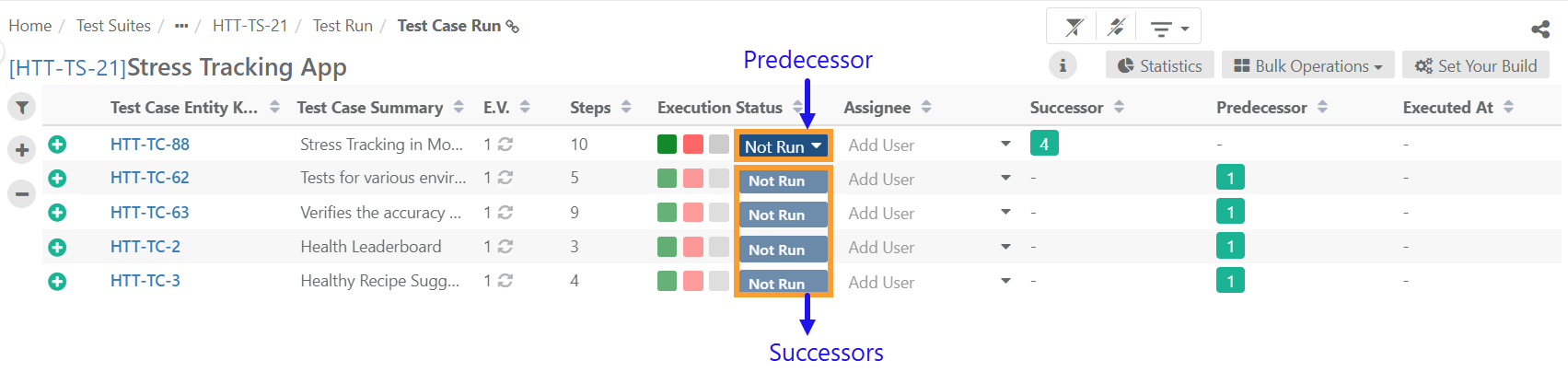
Execute the predecessor test case before running the successor test cases. Hover over the successor test case’s Execution Status to view its predecessor details.

The system triggers an email to successor test case assignees when executions are unblocked.
Execute Successor Test Case
Executing the predecessor unblocks the successor test cases. Assignees can then execute the successor test cases.
Auto Propagate Status to Successor Test Case
Enabled: If the predecessor test case fails or is blocked, you cannot execute successor test cases, and their status is set to Blocked.
Disabled: If the predecessor test case fails or is blocked, successor test cases cannot be executed and are marked as Not Run.
Unlinking Test Cases
To unlink the linked predecessor and successor test case, perform the following steps:
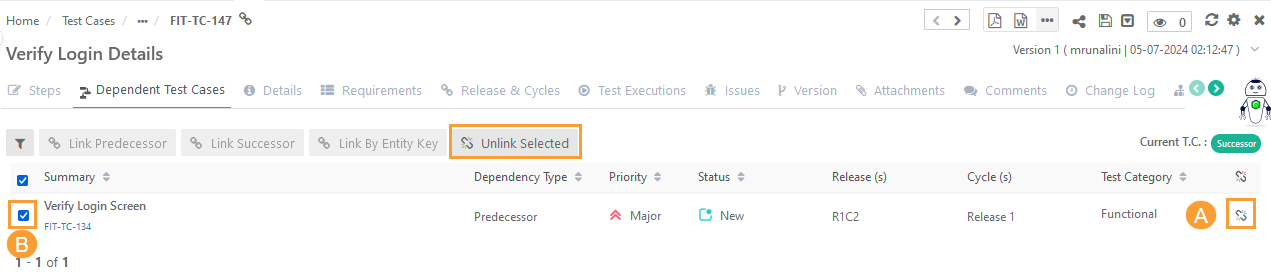 |
Open the Test Case Module and go to the Dependent Test Case tab.
Select the test case and click Unlink Selected.
Test Cases Dependency Report and Test Case Execution Dependency Report
The Test Case Dependency Report displays relationships between test cases, helping testers and managers understand dependencies and effectively plan execution. This ensures thorough coverage and timely delivery.
The Test Case Execution Dependency Report helps in understanding the order in which test cases should be executed and identifies any potential issues or bottlenecks in the testing process. This report is essential for test managers to plan and execute testing activities effectively.
To access the report, perform the following steps:
Go to System Report.
Select Test Cases Dependency Report
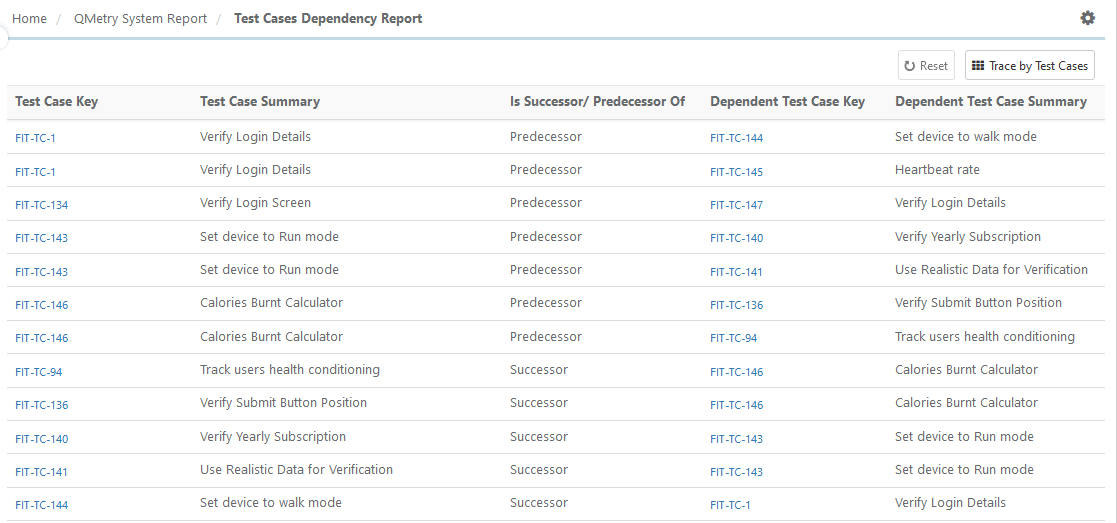
Click Trace by Test Cases to generate a report for test cases.
Click Trace by Test Suite to generate a report for test case executions.
Select the test suites and click Apply to generate the report for the selected test suites.
Export Reports
To export test dependency report, perform the following steps:
Go to the Test Case Dependency Reports.
Click the Cog (⚙️) icon. Select the format to export the report details.
Select the format to export.
XLSX format
CSV format
Track the Test Case Export Progress.
Change Log
The Change Log Report under Audit Compliance displays all modifications to test case dependencies.