Test Execution Screen Detail View
The Test Suite Execution screen is used for performing Manual Testing and scheduling Automation Testing by QA teams. Test suites are executed on different platforms and the run results derived therefrom are marked on the screen. There are two views available for the test execution screen: Default View and Detail View.
The Detail View of execution screen shows the test case execution details grouped in different tabs on a single screen. You can also change the sequence of the tabs through drag and drop operation. The preferences are saved as per each user.
To switch to the Detail View of the execution screen, click .
Test Run Detail View
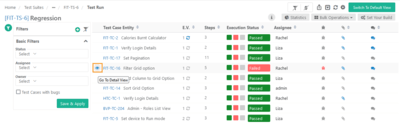 |
To view the test case run detail view, perform these steps:
Hover over the test case.
Click the Eye icon.
This opens the Test Case Detail view. The panel at left displays test cases linked to the test suite. The top section of the screen displays the test case run details. You can view the following details for the test case on the execution screen.
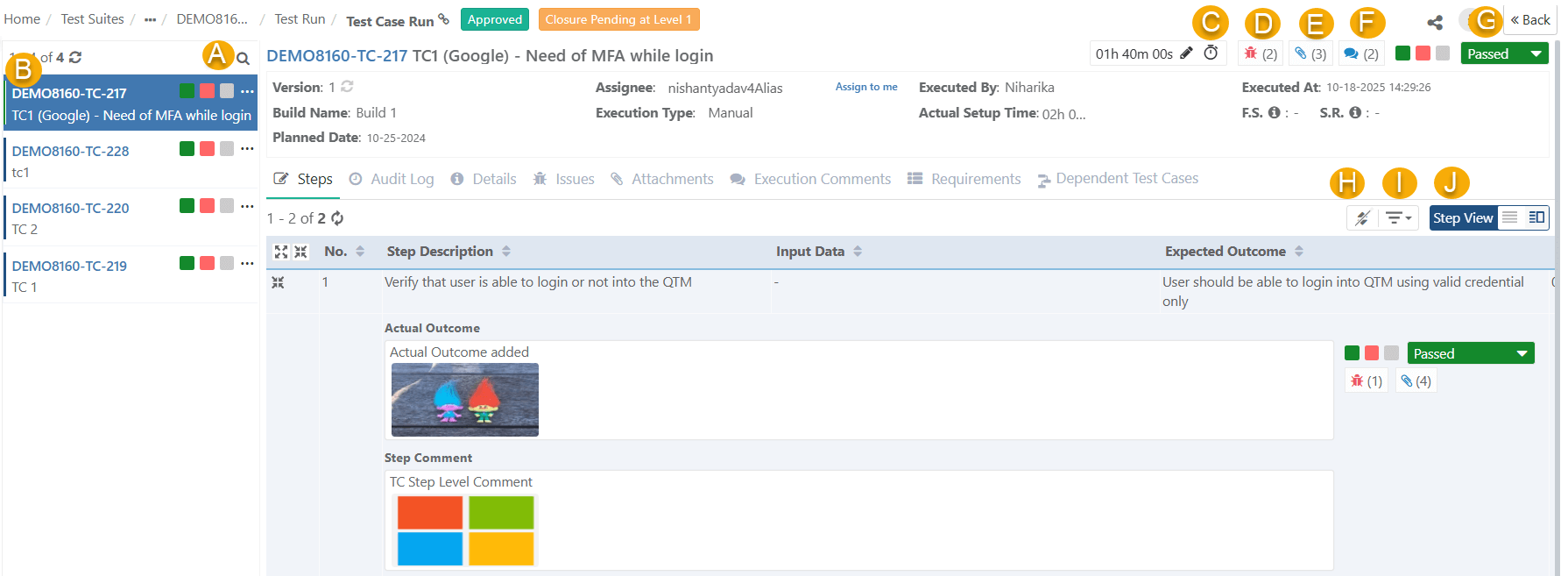 |
A. Search test cases by Key or Summary
B. Execution Status: Identify the execution status of each test case.
C. Stopwatch Timer: Click the Edit icon to record the execution time.
D. Issues Count: Number of bugs reported for the execution. Click the number to open the issues tab.
E. Attachment Count: Number of attachments added to the execution. Click the number to open the attachment tab.
F. Comments Count: Number of comments added to the execution. Click the number to open the comments tab.
G. Set Execution Status: Set Execution status manually.
H. Clear Sorting: Sort test cases on the Test Execution screen by clicking on the respective column headers. Click Clear Sorting to clear this sorting.
I: Arrange Columns: Show or hide columns on the detail view from Arrange Columns.
J: Step View: View step details.
Build Name: The drop-down shows values entered in Builds under Projects.
Assignee: Assignee assigned from the execution screen.
Executed by: User who has executed the test case.
Actual Setup Time: The actual time required to set up the test case.
Actual Attended Time: The actual time that is taken for executing the test case.
Execution Result: The result of the execution.
Filters: Filter the test executions with basic and advanced filters. Refer Filters to know more.
Platform Attributes
If you have tagged Platform Attributes for runtime, you can edit Runtime Attributes in the detail view. You can provide attribute values on the Execution Screen either at run time or afterward.
Test Case Details
The Test Case details shows execution detail in seperate tabs. Change the sequence of the tabs through drag and drop operation. The preferences are saved as per each user.
 |
Steps Tab
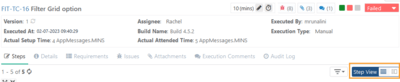
View the steps in List View or Grid View.
Steps View in List View: View step details organized vertically.
Steps in Detail View: View step details in a row.
Details Tab
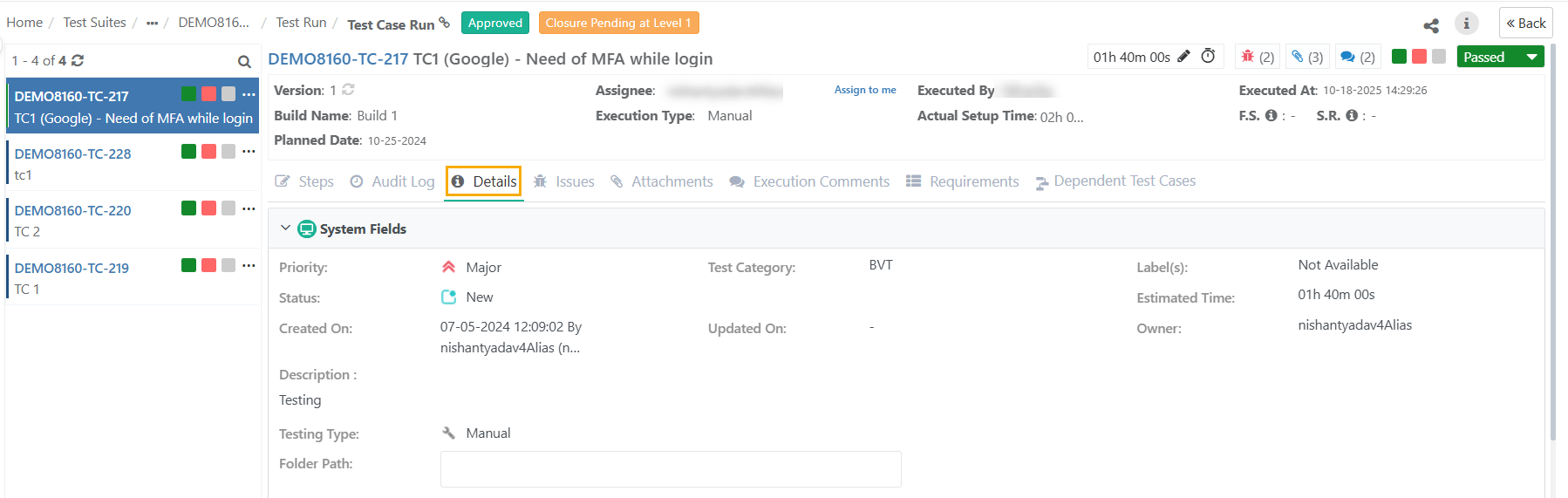
Detail View of the execution screen displays details entered for the test cases in the Test Cases module.
 |
Requirements Tab
The Requirements tab enables testers to view requirements associated with the test case under execution.
Issues Tab
Create a new issue or link existing issues to the test case. View linked issues to the test case in this tab. For a linked bug, the Linkage Level displays whether the issue is logged at the test case level or test step level. You can unlink a bug from its place of linkage.
Read more details on Link Issues/Bugs/Defects on Detail View Execution Screen.
Attachments Tab
The Attachments tab lists down all the attachments added from the Test Cases module as well as from the execution screen. You can filter attachments based on their Attachment Level.
Read more details on Add Attachments on the Detail View of Execution Screen.
Execution Comments Tab
Write execution remarks in the Execution Comments tab. Tag users in the Comments sections by @username. A email notification is triggered to the tagged user.
Audit Log Tab
The Audit Log tab consists of two sections: Test Result Log and Change Log.
Test Result Log: The section displays test result execution log for the test case. Expand the test case and drill down to view the steps.
Change Log: The section record the change log for that particular test case.
Test Case Run Detail View
Assign Execution Status
Assign Execution Status at Test Case or Test Step Level.
Assign Status to Test Case
To assign status to a test case, perform these steps:
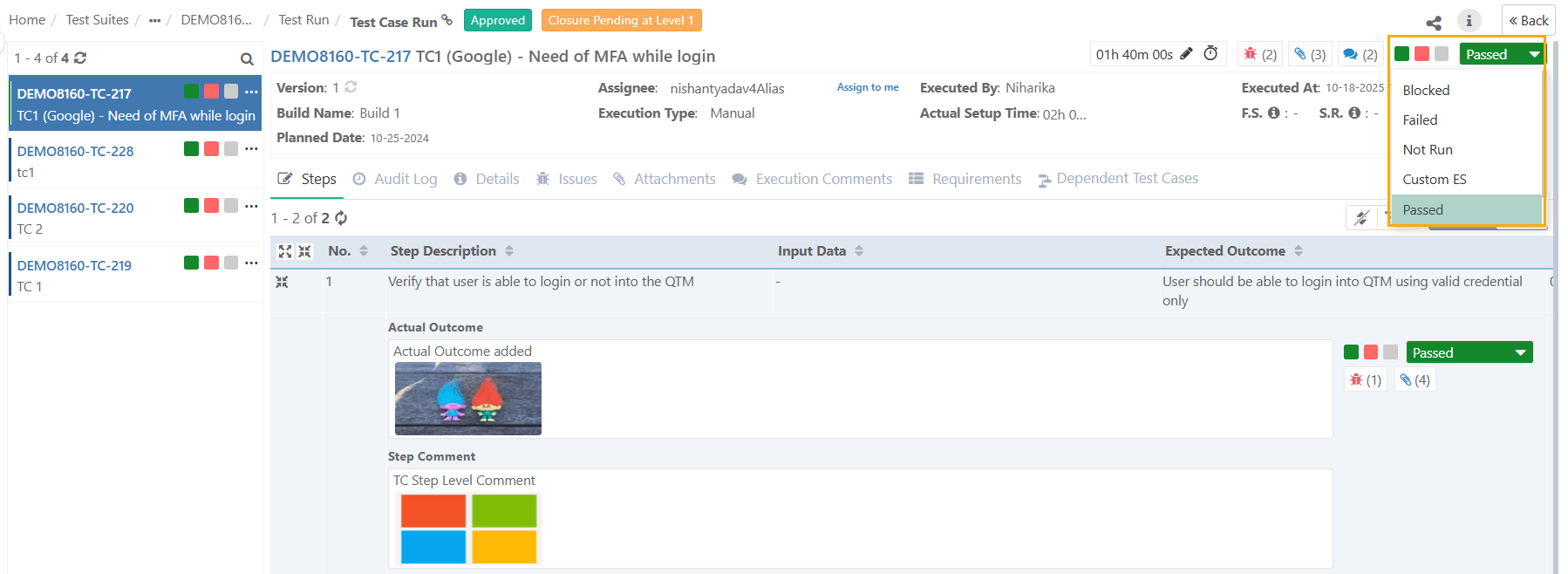 |
Go to the Test Case Details Page.
Click Execution Status Icon and set the execution result.
The test cases associated with the test suite are displayed on the panel at left. Select the result you want to assign to the test case directly by clicking on the result icon on the left panel.
 |
Assign Status to Test Step
Open the Steps tab and assign the status to the step.
Link issues and attachments to the step.
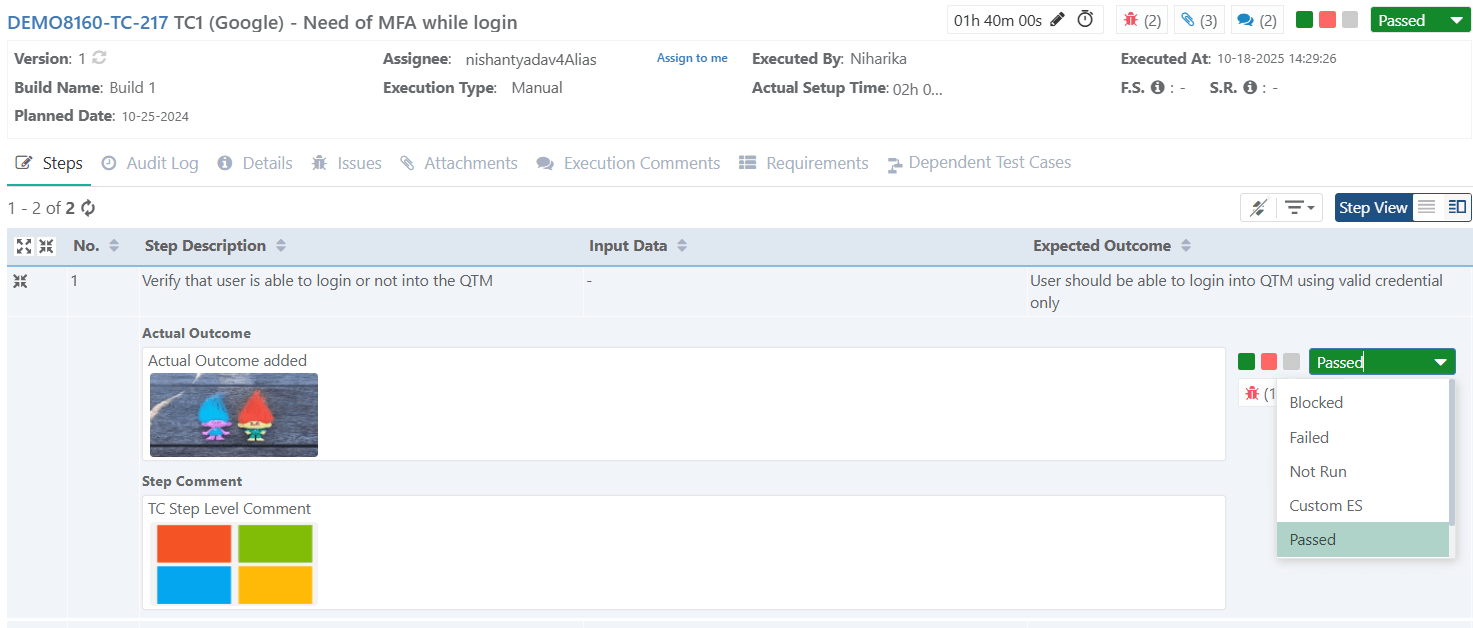 |
Click the Bug icon to link issues to the steps.
Click the Attachment icon to link attachments to the step.
Test Execution Info
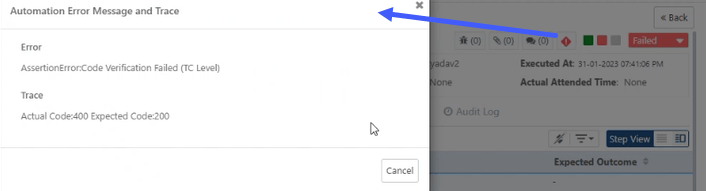 |
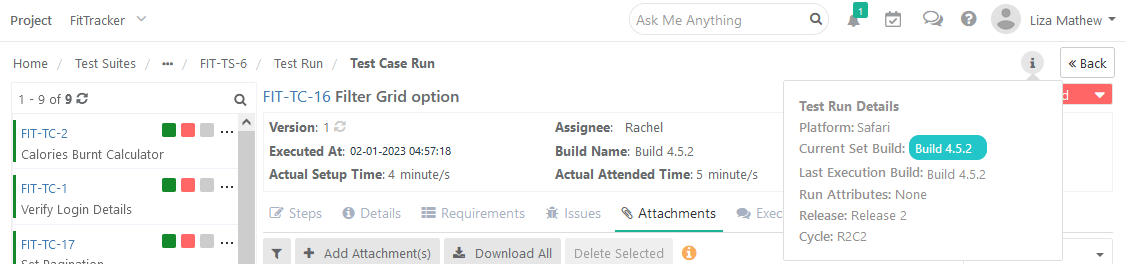
To view the test run details, click the info icon at the top. For Automated Test Case Failure, you can trace the errors.
Execution Status of Test Cases with Parameterized Values
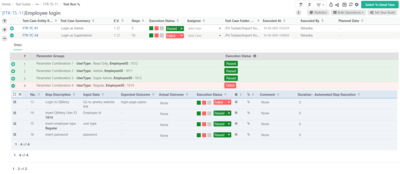
The execution screen displays the execution status at the parameter group combination level when executing parameterized test cases.
As a tester analyzing a failed test case execution with multiple parameter group combinations, you can identify both the failed parameter combinations and unexecuted cases with a "Not Run" status.
Note
The execution status for parameter groups isdisplayed for projects in which the “Derive Test Case Execution Status from Test Step Status” setting is enabled.
Only the consolidated execution status for each parameter group combination is displayed based on the test step execution performed for that combination. This execution status is not editable.
The execution status of each parameter combination follows the similar status prioritization logic used to calculate the test case execution status. Refer Execution Status Management to know more.
Actual Attended Time (mins)
Enter Actual Setup Time and Actual Attended Time for each test case on the execution screen. Refer to Tracking Actual Execution Time with Stopwatch Timer document to know about timer settings.
Bulk Operations

Note
Users with ANY of the following permissions can Assign, Modify, Unassign test execution testers and change the planned date:
Test Suite Modify Permissions
Test Suite Execute Permissions.
You can perform the following bulk operations:
Execution Status
Execution Type
Assignee
Planned Date
Issues
Execution Comment
Sync with Latest Version
Execution Status
You can assign execution status to multiple test cases at a time.
Use Case: A new build is received from the development team, and the QA Manager has scheduled a Regression Test. The scope covers multiple modules and functionalities thereof. Testers are well aware of the test cases and test steps associated with each module. So they jump-start on executing the test cases one after another without going into details. They keep running continuous execution without updating the run status of each test case. At the end or a certain point they just update the status of bulk test cases with a few clicks instead of assigning status one by one on each test case execution.
Open the Bulk Operations drop-down and select the Execution Status.
Select test cases to apply the status.
Select status on the Execution Status drop-down.
Add a comment to explain the status change(optional).
Click Update to save the changes.
Execution Type
You can assign Execution Type in bulk to test cases whose execution type is similar.
1. Open the Bulk Operations drop-down and select the Execution Type.
2. Select test cases on the grid.
3. Open the Execution Type drop-down and select the type that is to be assigned to the selected test cases.
Assignee
Note
Users with ANY of the following permissions can Assign, Modify, Unassign test execution testers:
Test Suite Modify Permissions.
Test Suite Execute Permissions.
You can assign test cases in bulk to a tester to execute. It saves QA Lead, Manager's time to assign multiple test cases to the same tester.
Open the Bulk Operations drop-down and select Assignee.
Select test cases on the grid.
Open the Assignee drop-down and select the tester to whom all the selected test cases are to be assigned for execution.
Planned Date
Note
Users with ANY of the following permissions can modify the Planned Date:
Test Suite Modify Permissions
Test Suite Execute Permissions.
You can set a single planned date for multiple test cases in bulk.
To set planned date, perform the following steps:
Open the Bulk Operations drop-down and select Planned Date option.
Select the test cases from the grid.
Open the Planned Date calendar and choose the desired date for the selected test cases.
If no planned date is available, click Set as Unplanned.
The planned date for all the selected test cases gets updated in bulk.
Issues
Users can link issues or Jira defects to multiple test cases at a time.
A testing team has some test suites containing many test cases. They want to link a Jira issue with multiple test cases. Linking an issue to each execution can be very time consuming. Thus, they want the ability to link a JIRA issue to multiple executions at once.
1. Open the Bulk Operations drop-down and select the Link Issues option on it. It makes the Assign Issues button visible.
2. Select test cases on the grid.
3. Click on the Assign Issues button. It opens Issues screen.
Then follow the same mentioned process of linking existing issues. Read more about Adding/Linking Issues to Test Case and Test Step.
When opening the issue in Jira, the test case links in Jira are displayed in accordance with the defects linked with test cases.
Execution Comment
Note
You need Test Suite Execution Permissions to add execution comment.
You can add execution comments for multiple test case runs in bulk. This comes handy when you need to add the same comment for multiple test case execution runs in a test suite.
To set execution comment in bulk, perform the following steps:
On the Execution Screen, open the Bulk Operations menu, and select Execution Comment.
Select test case executions using check boxes and filters.
In the text box, enter the comment, and select the check mark to save.
Note
You can update up to 1,000 records in a single operation.
The Select All option is not available for test case dependent projects.
To use rich text in comments, enable the Rich Text Editor in Project settings.
Rich Text Editor supports formatted text but excludes image insertion, image copy-paste, and user tagging.
You can add comments at the Test Case Execution Level and not at the Test Step Execution Level.
The maximum comment length is 65,535 characters.
Execution Time
Users can modify the execution date and time for multiple test cases at a time.
To enable the editing of the Execution date and time, go to Customization and select General Settings and Audit and turn the Allow manual edit of last executed date or time flag On.
1. Open the Bulk Operations drop-down and select the Execution Time option on it. It makes the Execution At field visible.
2. Select test cases on the grid.
3. Select date and time of execution using calendar and click Apply.
The date and time is changed under the Executed At column for the selected test cases.
Assign Build for Test Executions
Build is a specific iteration of the product/domain to be tested. The feature allows the tester to assign a "build" (aka patch, drop, or increment) to test suites that indicate the version of the product being tested. It helps to track multiple builds of software more dynamically without having to add separate test suites with every new build.
Refer to Assign Build for Test Executions for more details.
Linking The Latest Test Case Version at Run-time
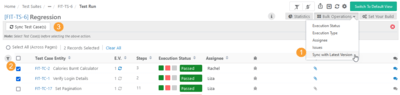
Associate the latest version of the test case to the test suite from the Detail View Execution screen by syncing the test case version.
Refer to Test Execution Screen Default View for more details.
Sync a Single Test Case to the Latest Version
 |
Bulk Sync Test Cases to Latest Version
 |
Test Result Log
The Test Result Log displays detailed information about each test.
 |
Change Log
The Change Log displays logs of the following activities carried out on the execution screen for a particular Test Execution.
Export
You can export test executions in Excel. Refer to Export from Execution Screen.
Share Test Execution Runs with Other Users
Share test execution runs with other users. The recipient receives an email with an asset summary, a message from the sender, and a link to the asset.
To share test execution runs, perform the following steps:
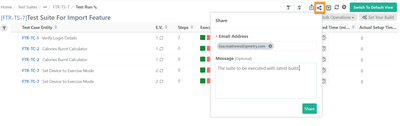
Go to the Test Suite and select Test Executions.
Click on the Share icon at the top. The Share pop-up opens.
Enter the email addresses o share the asset.
Write a message (optional but recommended) for the recipients.
Click Share.
Copy Test Asset Link
Users can copy the test asset link and share it with other users for direct access. Authorized members can access the test asset through the shared link.
URL Syntax
https://<URL>>/#/<AssetType>/<AssetKey>
For example,
https://qtmtest.qmetry.com/#/test-run/FIT-TR-51584
To copy URL, perform the following steps:
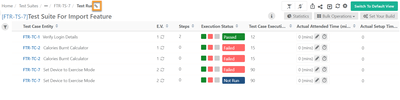
Go to the Test Suite and select the Test Executions.
Locate and click on the Copy Link icon on the breadcrumb navigation.
Users can share this link via any preferred communication channel.