Assign Build for Test Executions
A build is a specific iteration of a product or domain being tested.
Assign a build (patch, drop, or increment) to test suites or test cases to specify the product version under testing. It helps track multiple software builds more dynamically without creating separate test suites for each new build.
Note
Add the build first and associate it with the Release and Cycle linked to the test execution.
You can assign builds at two levels:
Build for Test Suite
Assign a build to the entire test suite. The system executes all test cases in the test suite on the assigned build.
Note
This option is included in the Base package.
Build for Individual Test Case
Assign different builds to individual test cases within the same test suite.
Note
This option is available with the Customization package.
With the customization package, you can:
Make build selection mandatory for a project.
Set a default build for a Release and Cycle combination.
Assign a build to the entire test suite.
Assign builds to individual test cases within the test suite.
Setting Build Selection as Mandatory in a Project
Organizations often manage hundreds of builds across multiple projects. Without a specified build number, it becomes difficult to track which build a test was executed against. To streamline this, QA Managers can enforce mandatory build selection during test execution.
Note
Mandatory Build features are available only with the Customization package.
Get Project Create and Modify rights to make build selection mandatory in a project.
To make Build Selection Mandatory, perform these steps:
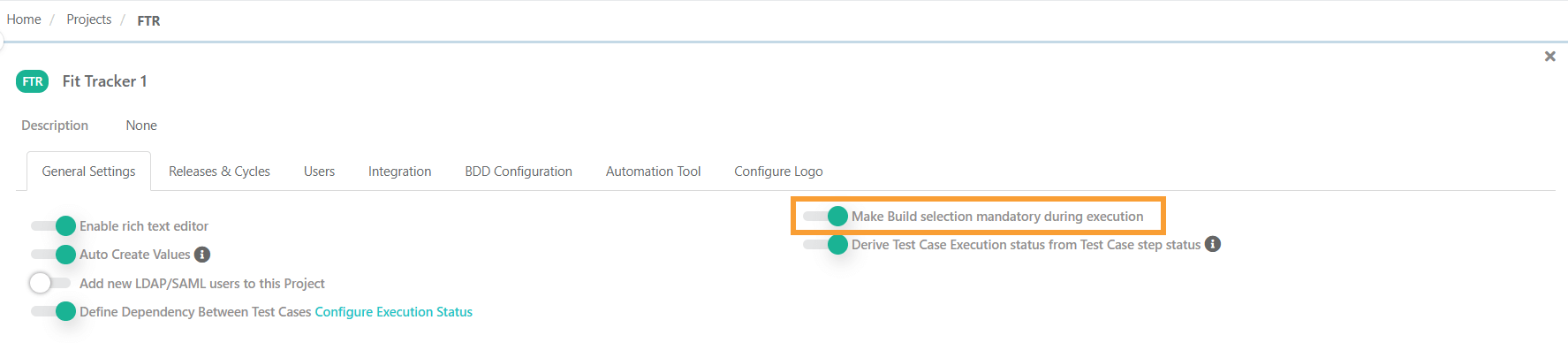
Go to Projects.
Enable Make Build Selection Mandatory during Execution setting while creating or editing a projec
Once enabled, this setting enforces build selection on the Test Suite Execution screen, ensuring testers specify a build before executing test cases. A tip Build is set as Mandatory during execution is displayed on the Build grid.
Setting Default Build for Release Cycle
QA Managers can define a default build for a release and cycle combination, so test executions are automatically assigned to that build without requiring manual selection. Testers can manually reassign a different build during execution if needed.
Note
Set Default option on the Build, Create, and Edit screen appears only for users with the Customization package.
When you have set a default build, changing the execution status requires confirmation if you want to use the default Build.
When a Default Build is set for a release cycle:
The system assigns the default build to all new executions. The default build overrides already set builds, but does not affect completed test executions.
When you select a new build using the Set Your Build option that differs from the Default Build, it applies only for that session. If you leave the execution screen or refresh the page, the build resets to the Default Build.
When no Default Build is set for a release cycle
The tester can manually select a build while running a test case. This build becomes the “executed build” for that particular test case.
If no build is selected during execution, the system uses the most recently assigned build as the executed build.
If no build is assigned or selected, the executed build is set to “None.
Business Rules for Setting Default Build:
For a given release cycle combination, you can set only one build as a default build.
You need modify build permissions to set a build as the default.
You can set a build as the default during creation or editing.
When a default build is set, the Current Executed Build is automatically set to the default build.
If the Default Build is archived, the Last Execution Build for the test suite is used instead.
If the Last Execution Build is archived but a default build exists, both the Current Set Build and Last Execution Build revert to the default build.
If both the Default Build and Last Execution Build are archived, the Current Set Build and Last Execution Build are set to None.
View Build Information
To view build informaion, perform these steps:
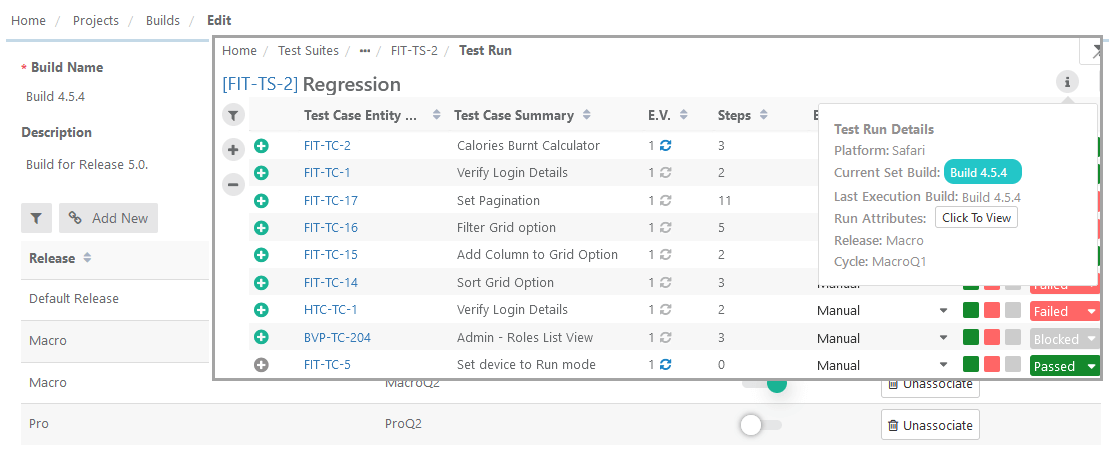 |
Click the info icon to view Default Build and the Last Executed Build details.
Current set build (default build): The build set as default in the Build module. This is a test suite level build. You can change the build at the test suite level, and the same is displayed as the Current set build until you refresh the execution screen.
Last execution build: The build assigned to test cases on the execution screen, which is used when executing the test cases.
Example 13. Example of default Build settingFor example,
Build B1 is set as the default build for release R1 and cycle C1.
Build B2 is also created in R1 and C1.
If the user tries to set build B2 as the default build, in that case, the earlier selection of default build (B1) will reset, and the new build (B2) will be set as a default build for that Release & Cycle.
The QA manager can set a default build for a release and cycle. This build is automatically selected when adding a test run.
Note
The default build setting does not apply to bulk executions. All test cases executed from bulk execute screen are assigned the build None.
Create a Build and Set as Default
To create a build and set it as default, perform these steps:
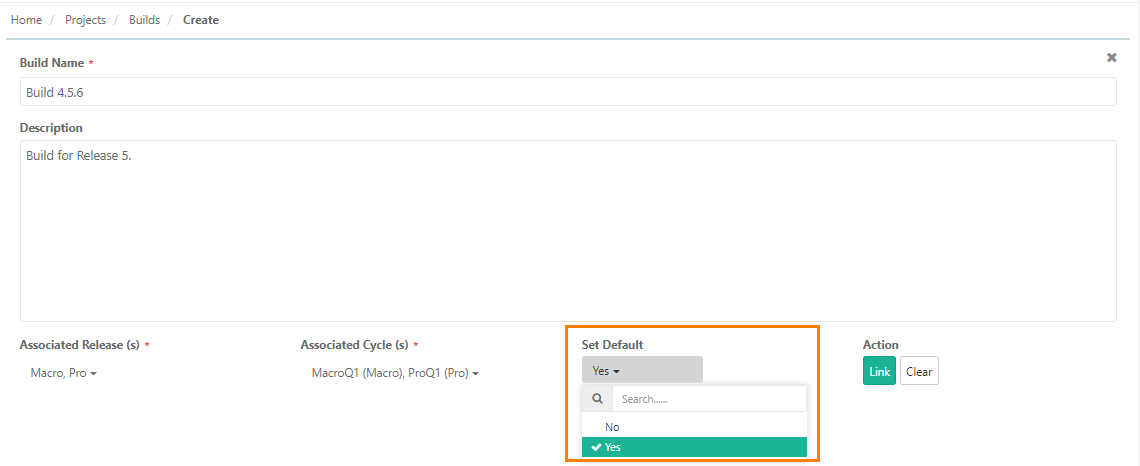
Go to Create Builds from Projects.
Set the drop-down to Yes or No.
Set Default - Yes
Marks the build as the default for the selected Release-Cycle combination on the execution screen.
QA Managers can set the current build as the default to ensure all executions are linked to the correct build.
Only one default build can be set for a given Release-Cycle combination.
If another build is set as default, the previous default build automatically switches to No.
Set Default - No
Testers can manually set a build during execution.
If no build is assigned or selected, the system sets the build value to "None".
Edit a Build and Set it As Default
To set an existing build as default, perform these steps:
Go to Builds from Projects.
Edit the Buid and update existing build details.
Add new Release and Cycle combinaions with a default build value.
Enable the Set Default option to mark a build as default for the selected Release and Cycle combination.
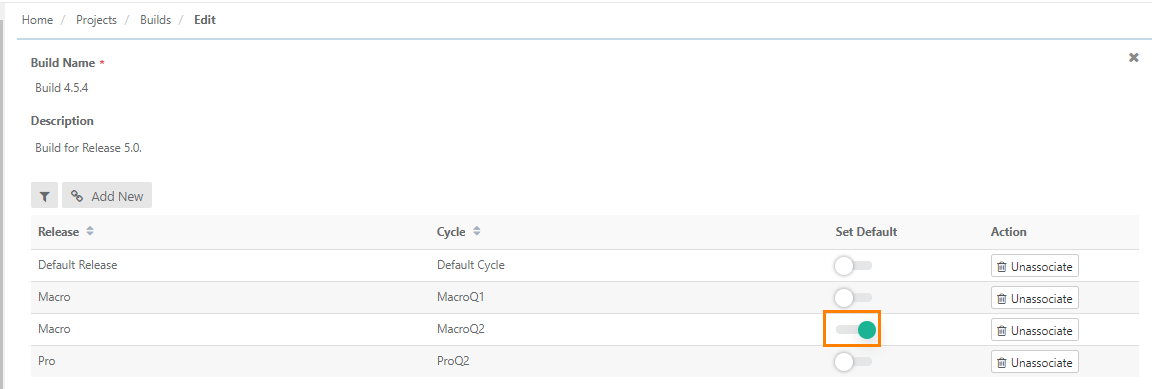 |
To see the Releases and Cycles linked to a default build, go to the Build grid under Projects.
Setting Build for a Test Suite
Note
To set a build as the default, you need to purchase the Customization package.
When executing test cases:
If the tester selects a build, that build is recorded as the executed build.
If no build is selected, the system uses the last set build as the executed build.
If no build has been previously set, the executed build is marked as “None.”
Note
Build assigned to a test suite applies to all the test cases under that test suite.
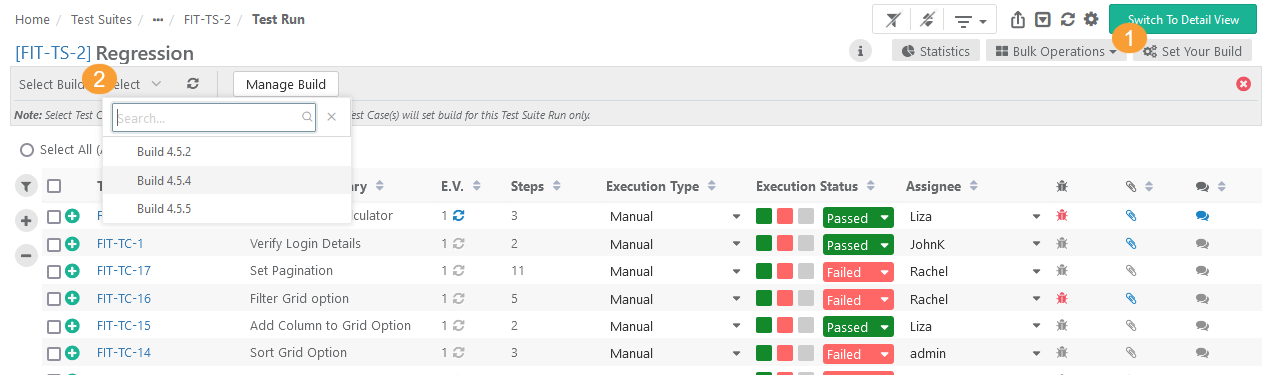 |
To assign build to a test suite, perform the following steps:
Go to the Test Execution Screen.
Click Set Your Build.
Open the Select Build drop-down and select the build to execute the test cases. The list shows all builds linked to the release and cycle of the current test execution.
The system assigns a Build to the entire test suite if:
All Test Cases are selected while selecting the build OR
No Test Cases are selected while setting the build.
Setting Build for a Test Case
Assign builds to individual test cases within a test suite, irrespective of the build set for the test suite or other test cases in the test suite.
If you change the execution status of a test case, the system applies the build associated with the entire test suite run (usually the default build) to that test case. This action overrides any build that was individually set for that test case.
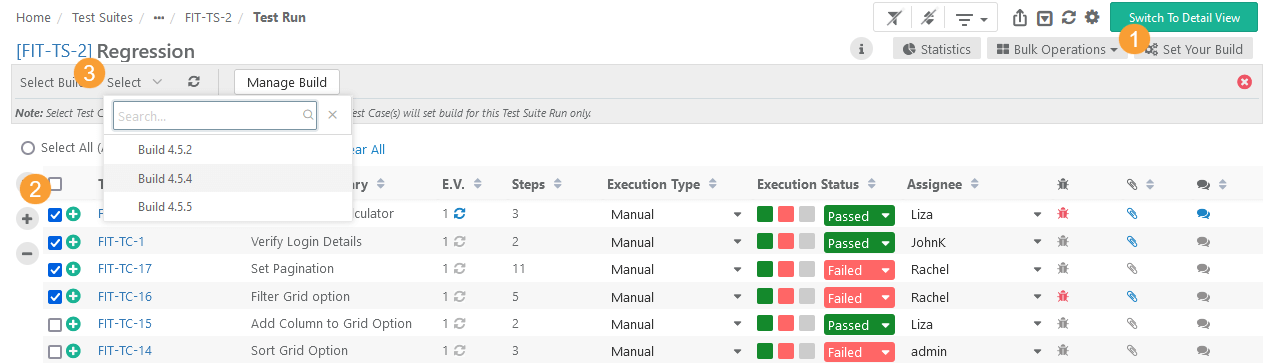
To set build for a test case, perform the following steps:
Go to the Test Execution Screen.
Click Set Your Build
All test cases are selected by default. Deselect any test cases you don’t want to apply the build to.
Open the drop-down and choose the build for the selected test cases.
Note
The list shows all builds linked to the release and cycle of the current test execution.
After selecting a build at the Test Suite or Test Case level, confirm the setting:
Change without Resetting: Assigns the selected Build to test cases without changing their execution status.
Yes Reset: Assigns the selected Build to test cases and resets the execution status of all the test cases to "Not Run".
To clear build selection for an execution, open the Build drop-down and clear the selection. The build is removed on confirmation.