Adding or Linking Issues to Test Case and Test Step
Log bugs at test case and test step levels. Add issues and attachments directly to test steps, including test run logs. These attachments also appear on the Test Executions tab of the test case.
To add issues, perform these steps:
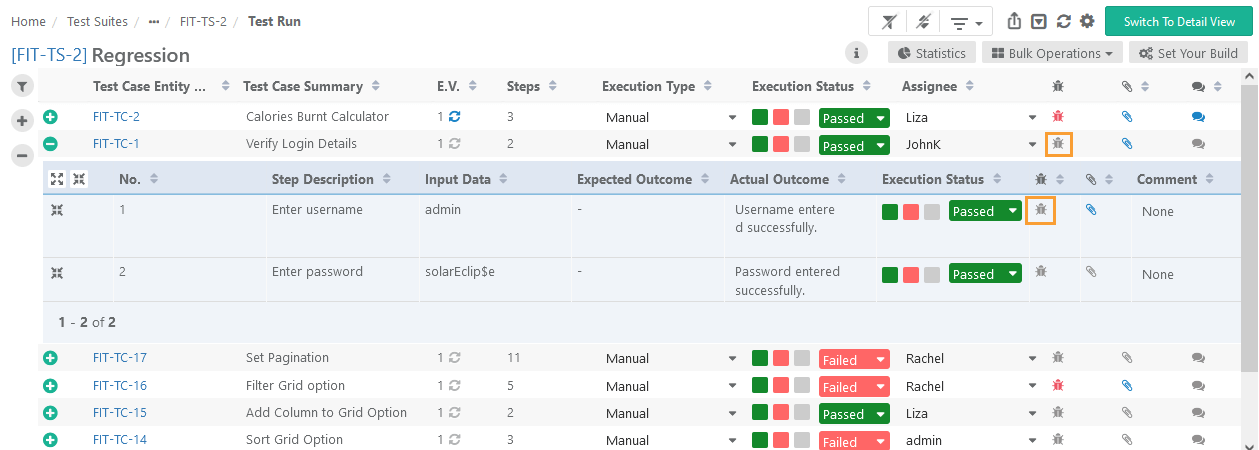 |
Go to the Test Run Screen.
Click the Bug icon next to the test case.
Enter the bug details and save the issue.
The Bug icon turns red when you add an issue.
Issues Screen
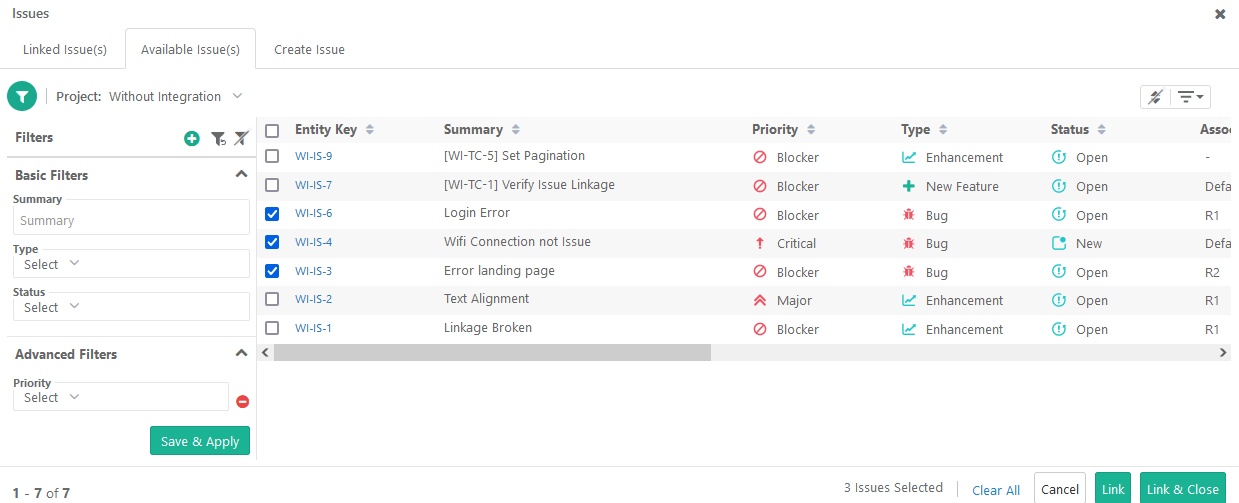
The Issues screen has the four options: Available Issues, Linked Issues, Link New Issues, Link External Issue.
 |
Available Issues
This tab displays all issues added under the project and is available to link with the test case.
Issues from External Tracker
If you have configured an external tracker and issues are logged in the tracker, then those issues are displayed with External Key.
Linked Issues
The tab displays all issues already linked with the test case.
Create Issues
Add new issues and link them with the test case.
To link multiple issues, select the issues and click or .
Issue IDs appear on the tab. Clicking on the Issue ID link opens the Issue details page in .
Customizing Issue Screen View
Resize columns, apply sorting on columns (other than multi-lookup lists field type), and show or hide columns using the Arrange Columns option.
In the case of linking issues from Jira:
The Advance Filter option is available for the custom fields that are mapped for the Issue module.
The Arrange Columns option displays all the system and custom fields that are mapped for the Issue module.
Linking New Issues
To link new issues, perform these steps:
On the Test Execution Screen, click the Bug icon next to the test case.
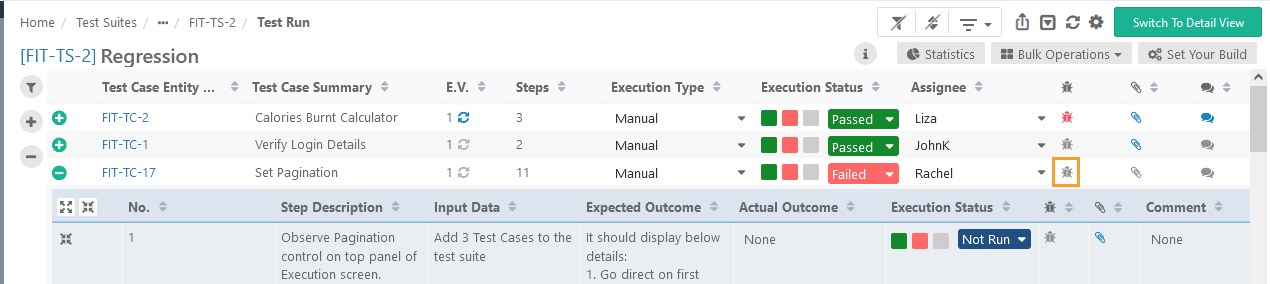
Open the tab.
Enter issue details.
The Issue Summary field is auto-filled with Test Case ID and Test Case Summary.
The Description field displays Test Case Summary and Test Step details including UDF details.
Link attachments under the Link Attachments section.
Click .
The newly created issue is linked to the test case and it is displayed under the Linked Issues tab.
Creating Issues at Step Level for Automated Test Cases
If an error occurs during an automated test run, the Error Message and Trace are displayed in the respective columns on the test execution screen. When you create an issue at test step level from the execution screen, a .txt file containing this Error Message and Trace gets attached to the issue.
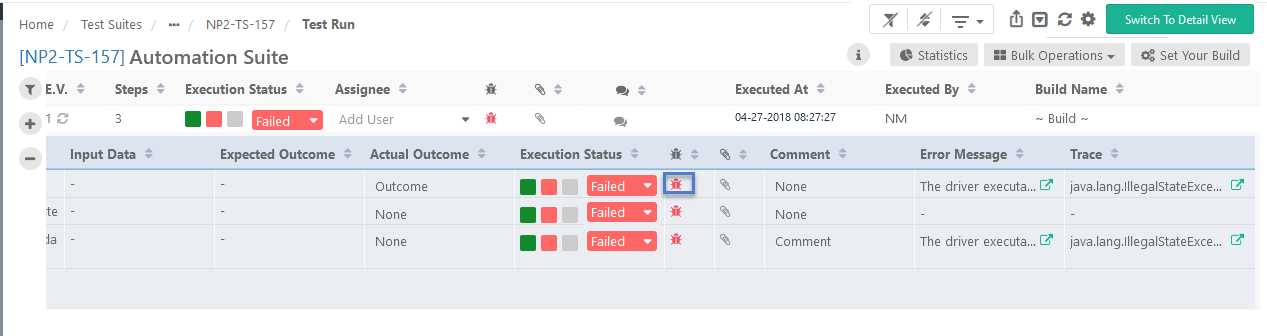 |
This .txt file can be accessed from the Attachment tab of the issue.
Linking Existing Issues
On the Test Run Screen, click the Bug icon.
Select tab.
Select issues and click Link .
Log Jira Issues from
If Jira is configured with the project, then the Issue module in is hidden. Defects in Jira can be logged from the Execution Screen of .
Logging an issue for the First Time
When logging an issue for the first time, a pop-up prompts you to authenticate with Jira.
To authenticate, perform these steps:
Enter Username.
Enter API Token. Refer Login using API Token to generate API Token.
To Edit or Revoke Authentication
If your Jira credentials are changed, follow Revoke Authentication to modify the credentials in .
Create and Link New Jira Issues
To create and link new Jira Issues, perform the following steps:
On the Test Execution Screen, click the Bug icon next to the test case.
Go to the Create Issue tab.
Select the Jira instance and project configured with the current project to add the issue.
The following fields are auto-populated:
Test Case Summary
Test Case Description
Comment
Step details:
Step Description
Step Input Data
Step Expected Outcome
Step Actual Outcome
Execution Status
Comment
Test Step UDFs
The system appends the issue name with the QMetry Test Case ID.
Enter the remaining details.
Click Create and Link.
The system links the new issue to the test case and displays it on the Linked Issues tab.
Linking Existing External Issues
The Available Issues tab displays issues that can be linked to the test case.
To link a single issue, click Link icon.
To link multiple issues at a time, select issues and click Link Selected Issues at the bottom.
Unlinking Issues
To unlink a linked issue, perform the following steps:
Open the Linked Issues tab.
To unlink a single issue, click the Unlink icon for that issue.
To unlink multiple issues at a time, select issues and click .
Issues Linked to Test Step
View Issues linked at Test Steps on the execution screen.
View step-level bugs at the test case level to see all associated bugs at the Test Case level.
Bugs are linked to a particular version of the test case and test steps under that test case. For example, on the Execution screen, a bug is logged with TC1 Version 1. Now the test case details are updated and the test case is saved with Version 2. When the test case version is synced on the Execution screen, the bug will only be displayed with the earlier version.
On Execution Screen, hovering over the Bug icon displays two distinct counts - issues linked to test case and issues linked to test steps.
On the test case list view, Linked Issues Count displays the count of issues linked at test steps level as well as test case level.
On the test case detail page, the Issues tab displays Linkage Level of the issue along with Test Case Version.
On the Issue detail screen, the Execution Runs tab the grid displays Linkage Level of the issue along with Test Case Version.