Map JIRA projects, Issue type, and Fields with Project
Map the projects and fields within the to sync Jira Issue Types and data.
Note
Get Project Administrator rights to integrate a Jira project with project.
Prerequisites
Get Project Administrator rights for the instance.
Integrate Jira with the instance.
Get valid permissions to access the Jira projects and issue types for mapping.
Mapping Jira Projects to
Map one or more Jira projects from one or more Jira instances with Projects.
Mapping Single Jira Project
To map a Jira project, perform the following steps:
Go to and open .
Select the project and go to Jira Integrations.
Select the Jira URL to map with project.
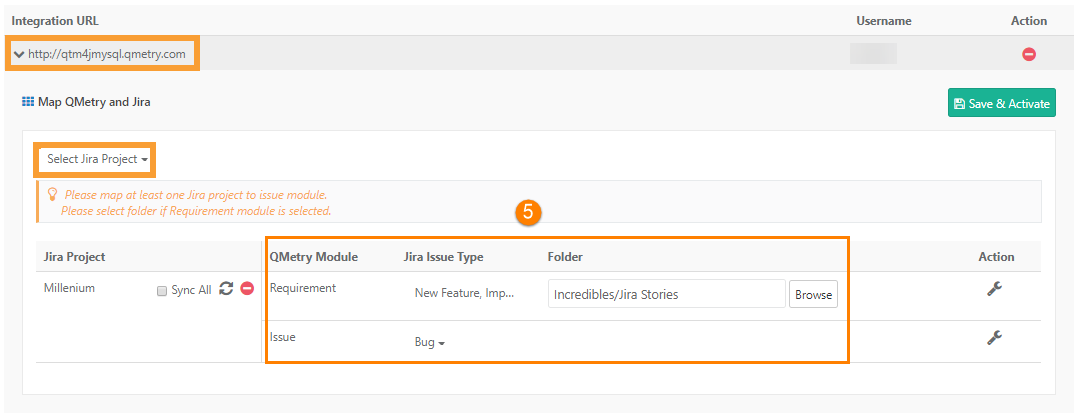
Select the Jira project to configure.
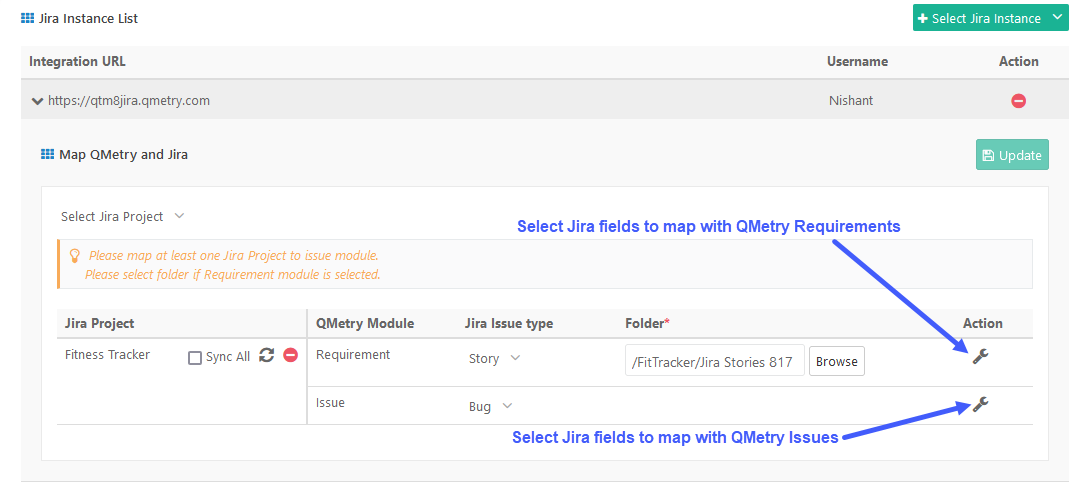
Set the Jira Issue Type and Module associations.
Note
The issue type is a multi-select list.
Select folder to import requirements if you have mapped Requirement module with Jira Issue Type.
Click Save and Activate.
Mapping Multiple Jira Projects
To map multiple Jira projects with a project, perform the following steps:
Go to and click .
Select the project and go to Jira Integration tab.
Select the Jira URL to map with the project.
Select the Jira Project to configure with project.
Map Jira Issue Types to Modules.

Map Multiple Jira Instances
To map Jira instances with a project, perform the following steps:
Go to and select .
Open the project and go to Integration tab.
Under Select Integration Type, choose Jira.
From the Jira Instance List, select the Jira URL.
In the Map and Jira section:
Select the Jira Project from the dropdown.
Map the Jira Issue Types to a module.
Select Folder for mapping Jira Issues as Requirements in .
Click Save and Activate.
To map another Jira instance:
Click Select Jira Instance and select the Jira URL.
Repeat steps 5 to 6 for the new instance.
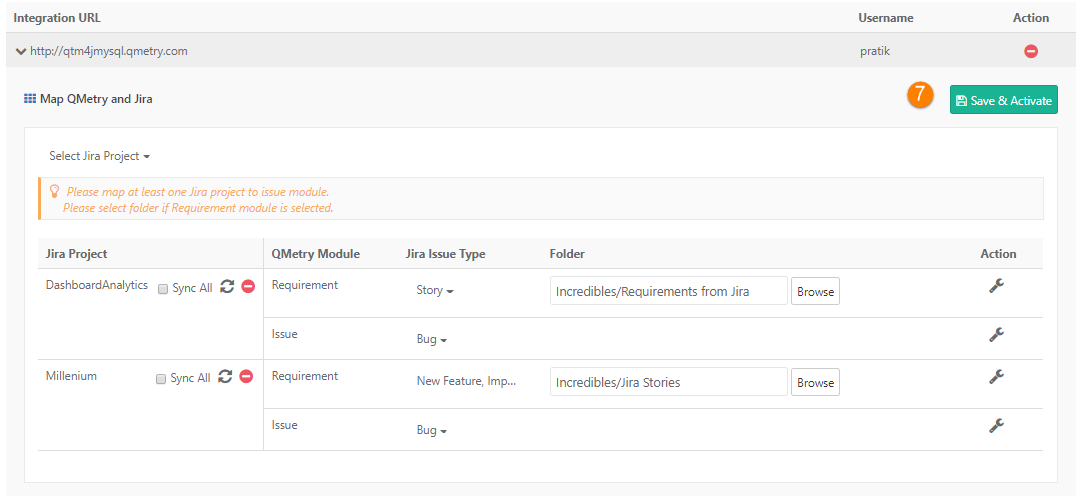
Mapping Jira Issue Types to Modules
Map Jira Issue Types with specific modules after configuring the Jira instance and Project.
Requirement Module
If you manage requirements in Jira as Epics, Stories, or Sub-tasks, select these issue types to link them to the Requirement module.
Select and map multiple work items under the Jira Issue Type.
Folder Selection is mandatory:
Select a folder in to import the Jira issue types into.
The first sync imports all issue types into the selected folder.
Move these issue types to other folders in if needed.
syncs all new stories and epics into the selected folder.
Issue Module
To sync Jira bugs or tasks, map the Jira Issue Type to Issue module.
This is also a multi-select configuration.
An issue type can be mapped to either the Requirement module or Issue module, but not both.
Work items synced from Azure appear in Issue module with an external key referencing the Azure Work Item Key.
Once you have mapped the Jira Issue Types with modules, click Save and Activate . For existing Jira integration, click Update.
Selecting Folder for Import
Select a folder during Jira configuration to import requirements into . Only admins can configure the folders.
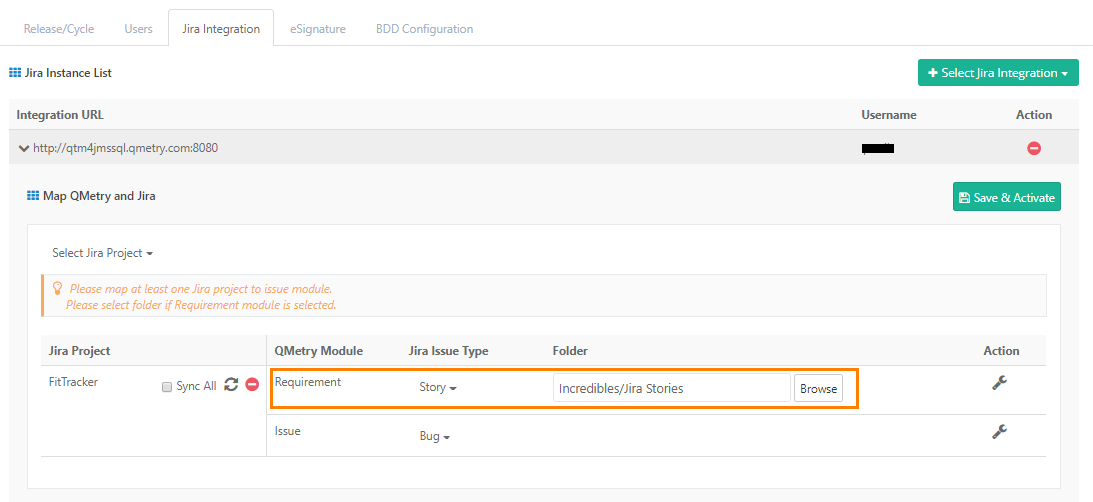
Admins can change the selected import folder at any time. When the folder is changed:
Only newly synced requirements are imported into the newly selected folder.
Previously imported requirements remain in their existing folders.
Tracking Sync Status
To monitor the sync status, perform the following steps:
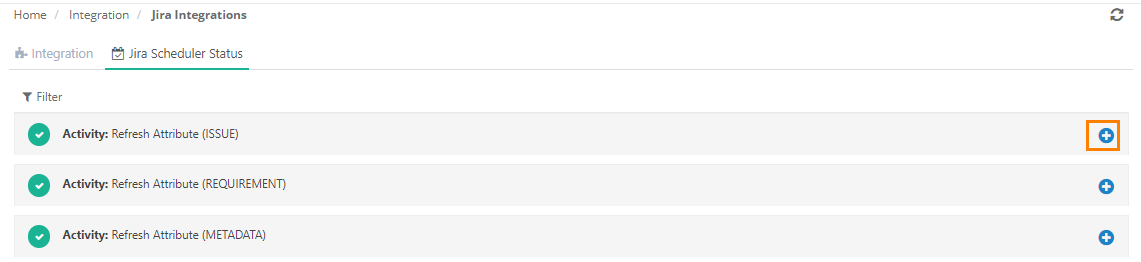
Go to Integration.
Open Integration Scheduler Status.
Click + to expand and see detailed sync information.
Tracking Jira Epics and Sub-tasks in
Import Jira Epics and Sub-tasks as either Requirements or Issues, while maintaining their parent-child relationships and key metadata.
Importing Jira Sub-tasks
Import Jira Sub-tasks into as Requirements or Issues.
After import, their details appear in the Sub-tasks Issues tab.
The sub-task issue detail's view includes a parent key for traceability to its parent Jira entity.
Read about Sub-task Traceability.
Importing Jira Epics
Import Epics in as Requirements or Issues.
The system supports Epic Fields like Epic Link, Epic Status, Epic Color, and Epic Name and shows them in the Jira Details section.
View Issues that are part of these Epics in the Issues in Epic tab.
Viewing Issues Linked to Epics
Check issues linked to the Epic in the Issues in Epic tab.
To display these issues in :
Integrate Jira Issue Types with the project.
Sync these issues with .
Each linked issue includes an Epic Link field that traces it back to the Epic.
Read about Epic Traceability.
Managing Synced Folders
Change, copy, move, archive or delete the synced folder.
Copy or Move the Synced Folder
Copying or moving the synced folder moves the folder to the new location and updates the folder mapping.
Archive Folder
Can not archive folders with externally synced entities (e.g., from Jira).
Move imported requirements to other folders and archive the folder.
The system restricts archiving the folder chosen during Jira integration.
During bulk archive, the system skips folders that contain external entities. It also skips their subfolders, even if those subfolders don’t contain external entities.
Also Read: Auto-organize Imported Requirements
Change Mapping of Issue Type with Requirement Module
Scenario 1. Issue Type mapped with Requirement is replaced with another Issue Type.
Issues synced based on the earlier mapping gets converted into internal issues.
New issues sync as requirements as per the changed Issue Type.
Scenario 2. In addition to the existing Issue Type, another Issue Type is mapped with the Requirement.
Issues synced based on the earlier mapping remains intact as Jira issues.
New issues are synced as requirements as per the added Issue Type.
Configuring Jira Fields Visibility
displays default Jira Issue fields in its modules. Project admins can configure additional Jira system and custom fields separately for each Jira project and issue type.
Admins can sync only the required Jira system fields into , rather than syncing all fields:
Project admins can deactivate syncing for specific Jira System Fields within Requirements and Issues for selected Jira Issue Types.
Project admins can configure separate Jira Issue fields for viewing issue details in and creating issues from when configuring Jira Issue Types as Issues.
The system supports the following Jira field types:
Number
Date
Date and Time
Single line
Multiline
Multi-Look-Up Option
Single Look-Up Option
User picker
Multi-user picker
Select Cascading List
Version picker
Multi-version picker
Note
Click Sync if a Jira field does not appear in .
To Sync Jira Project data with projects, perform the following steps:
Configure custom fields for Requirements and Issues.
Sync Jira data to . For example, newly created custom fields, etc.
Sync All: Syncs all issues irrespective of their updated date.
Sync: Syncs those issue values that are recently updated in Jira based on their updated date.
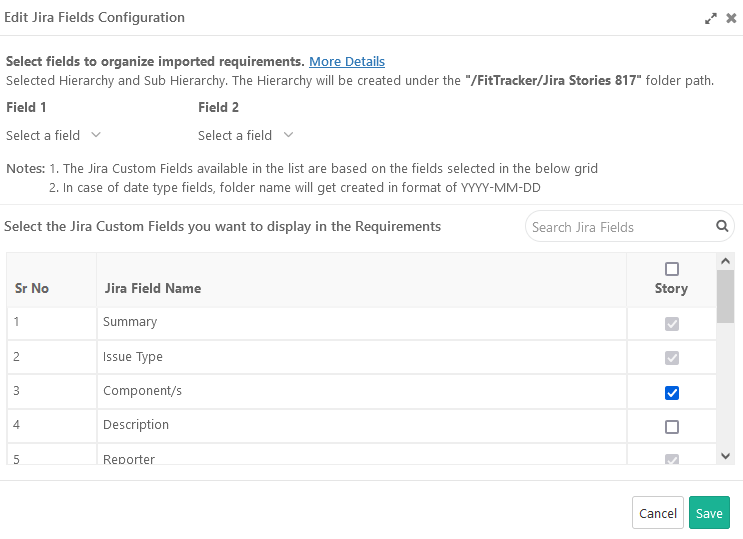
Requirement Mapping
While mapping a Jira Issue Type to Requirements, project admins can choose which Jira fields (system or custom) to show or hide on the Requirements screen.
They can also disable syncing for specific Jira system fields like Description, Component, Fix Version, Priority, Labels, and Attachments for selected Issue Types.
Some Jira fields are always visible and cannot be hidden. These include Summary, Issue Type, External Key, External Project, Created Date, Updated Date, Resolved Date, and Reporter.
Admins can select which Jira fields to map and display in Requirements. By default, Jira system fields and mandatory custom fields are pre-selected. Admins can choose to retain or deselect fields that do not need to be synced. Field mapping also determines how fields appear in hierarchical structures.
For cascading list fields:
If the field is mandatory in Jira, does not auto-map it. Admins must map it manually with view-only access.
If the field is optional, admins can decide whether to map it or leave it unmapped.
Click Save once you are done selecting or deselecting the Jira fields.
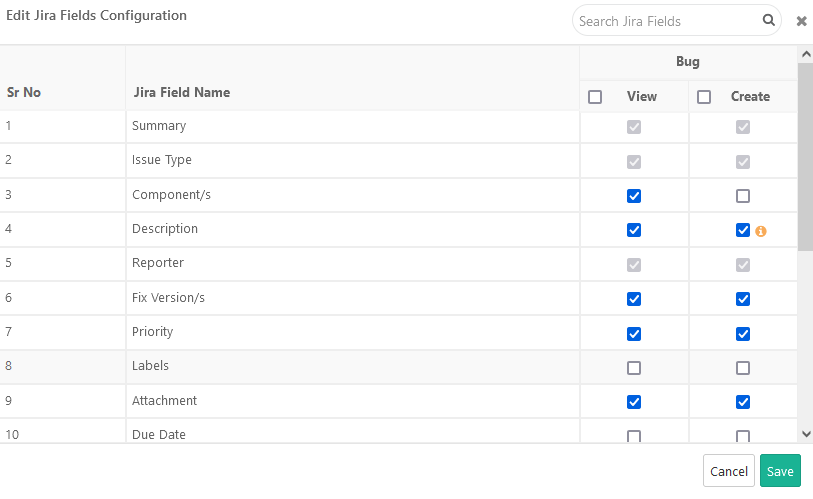
Issue Mapping
When mapping a Jira Issue Type to the Issue module, project admins can control the visibility and usage of Jira fields by setting the View and Create permissions.
Field Permissions
View: Displays the selected Jira field on the Issue List and Issue Detail screens.
Create: Displays the selected Jira field on the Create Issue screen in .
Note
If the Description field is deselected, does not auto-populate the issue description with reproduction steps when you create an issue from the Execution screen.
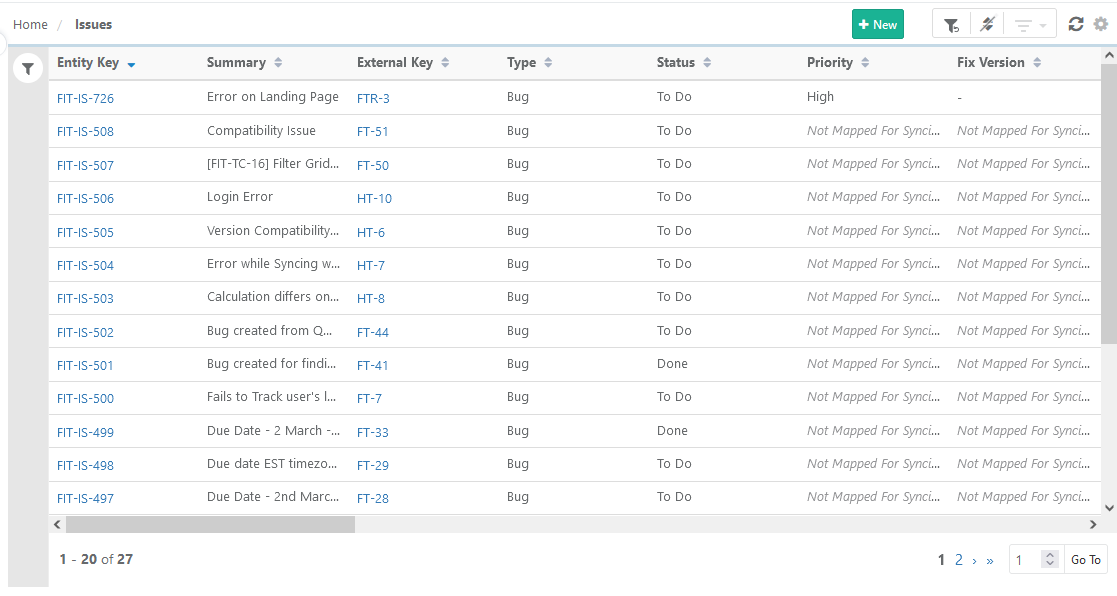
If both View and Create permissions are disabled for a field, users cannot see the field on the asset details page. The module list view will display “Not mapped for syncing” in place of the field.
Cascading List Fields
If a cascading list field is marked as mandatory in Jira, auto-maps it to the Issue module with full access (view, create, and edit). Project admins can unmap it if necessary.
If the field is optional in Jira, project admins can decide whether or not to map it in .
After setting the required permissions for the Jira fields, click Save to apply the configuration.
Display of Issue fields in Jira and
In Jira, all fields remain visible regardless of the field configuration settings in . In , the project admin can customize the field visibility based on project requirements.
Jira system fields will be visible in the reports irrespective of the configuration of the Jira system field in . It means the Jira system fields will still be visible in the reports even if that system field is not selected in the issue type configuration.
You can sync the mapped Jira custom fields in the Insight module for Visual Reports and Advanced Query Reports. Read more about Sync Fields to Reports .
 |
Note
The project admin must configure at least one of the Jira Projects with the Issue Module.
Once Jira is integrated with the project, the internal issue module is no longer available.
View status under the Integration Scheduler Status tab in Integration.
View Jira Integration Status
To view Jira Integration Status, perform the following steps:
Go to and select Jira Integrations.
Open the Integration tab.
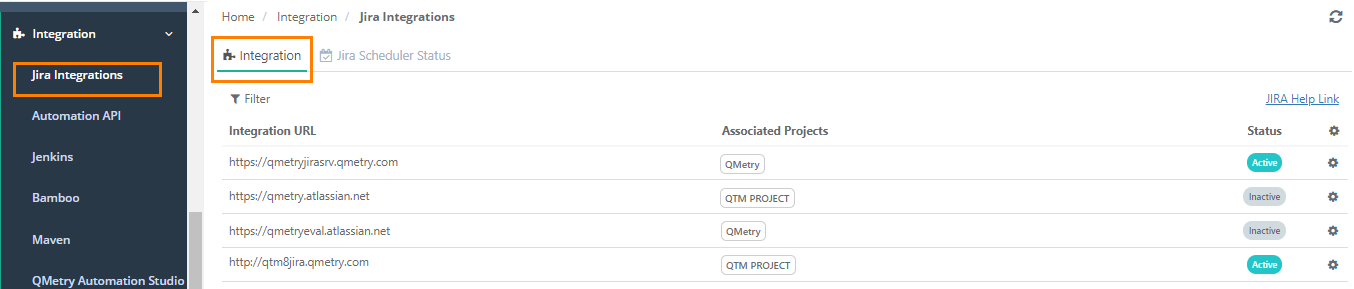
Check Integration status is Active or Inactive.