How to use the API tool
Users who have purchased the Open API app can request the API tool from the Support team. After receiving the REST API documentation link, follow this guide to get started.
Overview of Open API Documentation
Open the REST API documentation link to view and try the APIs.
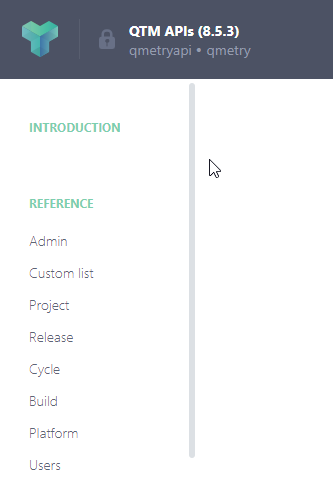
The main page shows the Grouping of APIs.
 |
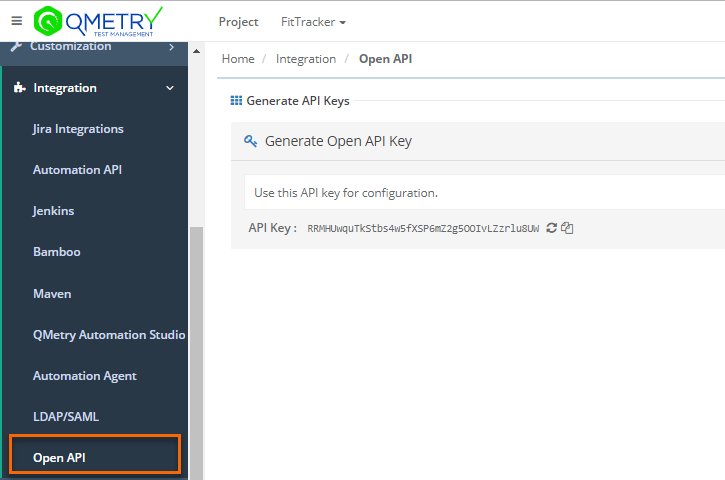
Generate Open API Key
authenticates all the REST API requests using an API Key. You can generate an API Key from Open API under Integration.
 |
Benefits of using an API tool:
Get a live instance to test the APIs.
Headers and Parameters are predefined. Just give the API Key, and trigger the testing.
Get the output in a preferred language.
Grouping of APIs
See the groups of APIs listed on the panel. Click the section to view and use the APIs.
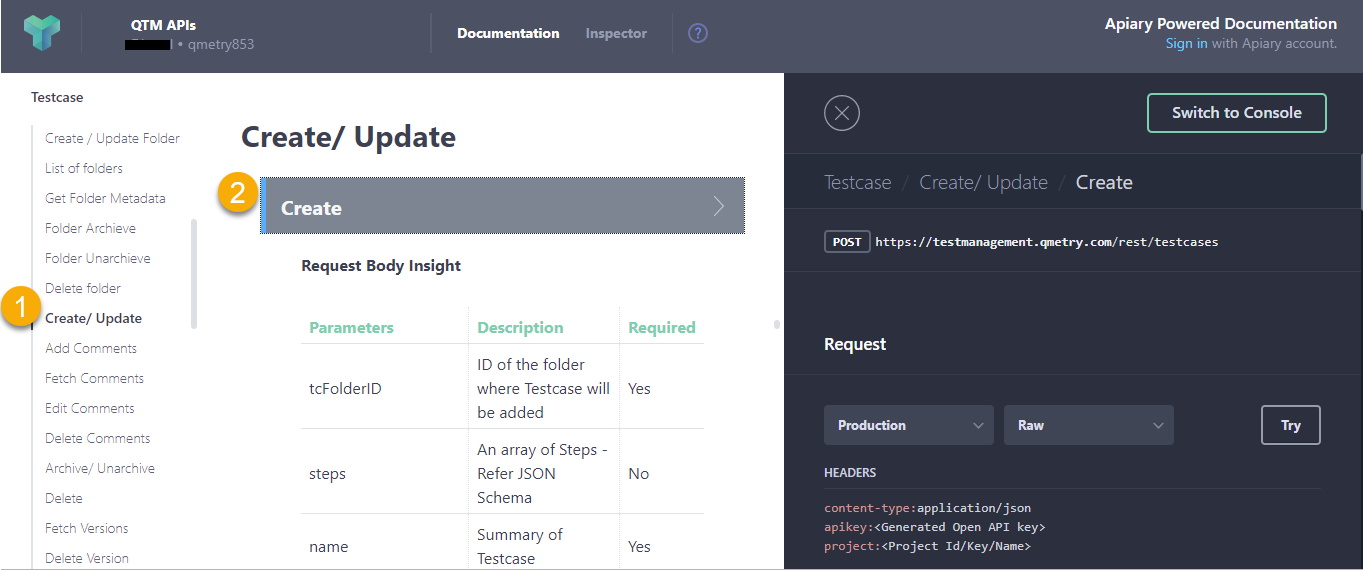
Expand the Test Case API group on the panel at left and select Create or Update API.
On the right panel, click Create API. It displays a relevant Example on the third panel.
Understanding the Example
The Example panel displays corresponding details of the selected API.
Request Type: API request type.
URL: The URL remains the same for all Cloud users.
Request: Select the Production server and select the language.
Headers: Provide API Key.
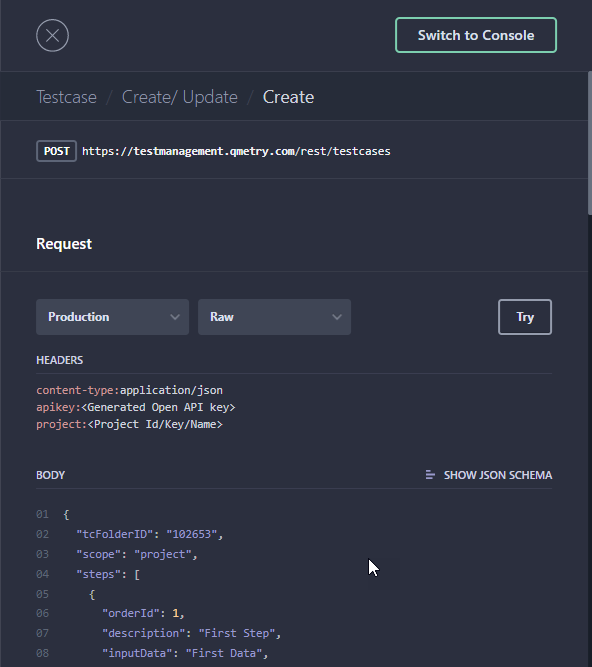
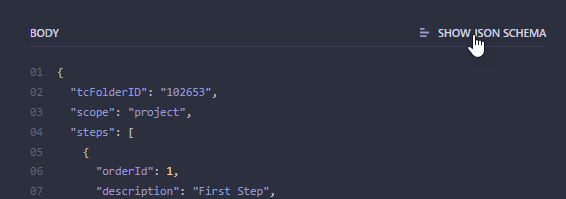
Body: The section displays mandatory parameters for the API. If you want to view more available parameters, click Show JSON Schema.
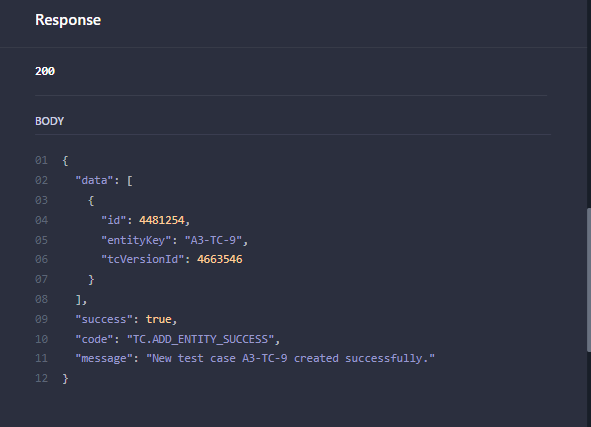
Response: View the corresponding response for the request.
Additional Body Parameters
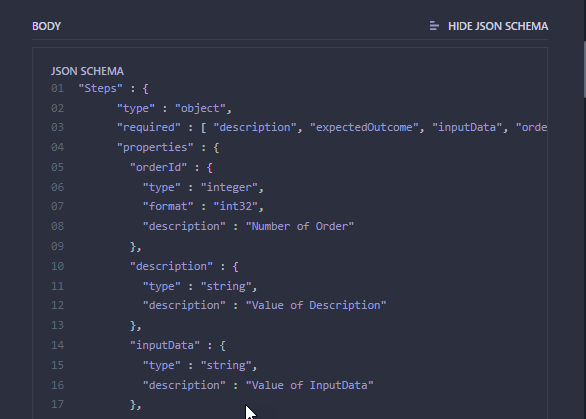
To see additional parameters in the request body click SHOW JSON SCHEMA.
Try Live Example
To try a live example, click Try.
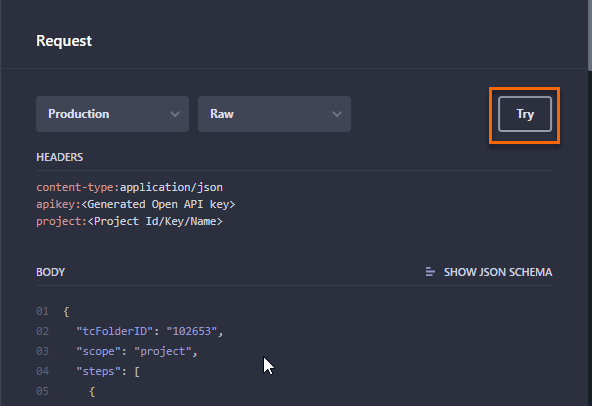
The console view switches to Example.
URL: The URL remains the same for all cloud users.
APIKey: Enter APIKey.
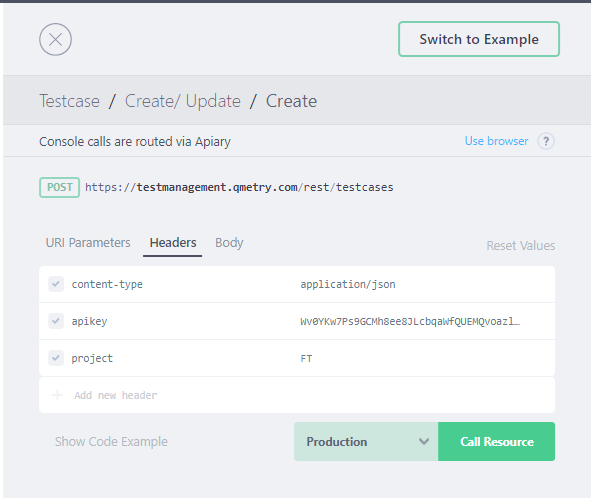
Body: The Request Body displays mandatory system parameters. You can define more parameters for the API as per the requirement. Refer to Additional Body Parameters.
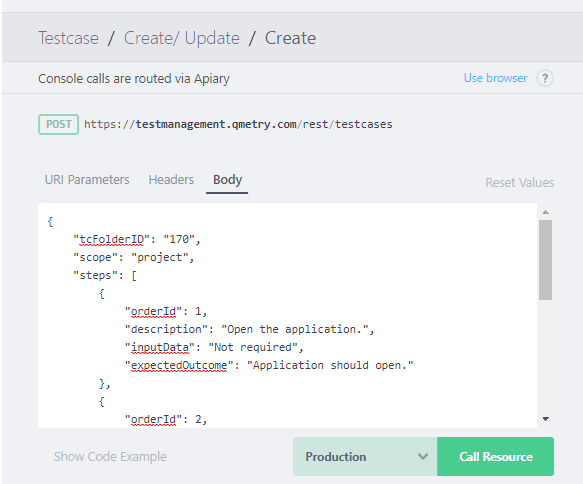
Run API : Click Call Resource to run the API.
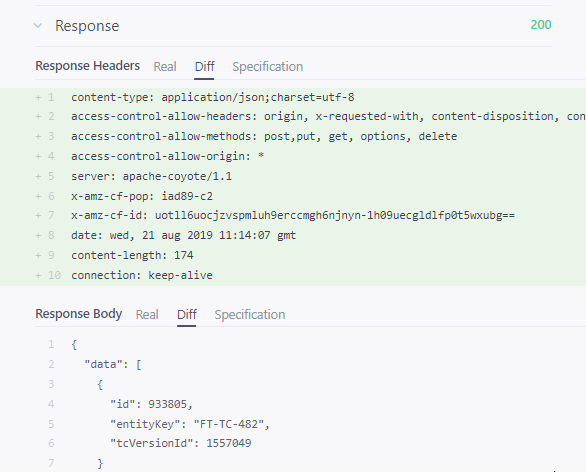
As this is a live example, the API will run directly on your instance. You can see the API Call response.
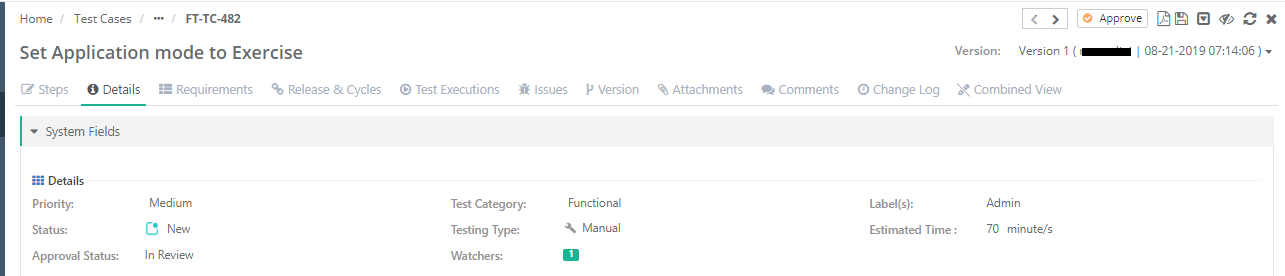
Here, we've tested the Create Test Case API. A new test case is created in .You can see the corresponding impact in the instance.
 |