How to test Open REST API
To test Open Rest API, perform the following steps:
Download the Postman application on Google Chrome.
Open and log in to the Postman application.
Download the Swagger file for QTM v8.15.0. Swagger specifications are used for REST API documentation. You can import the Swagger file into Postman to try out Open APIs.
Click Import on the application header. The Import wizard opens.
Import the Swagger file into Postman, drag and drop the Swagger.json file to the Import File area or choose the Swagger.json file to upload.
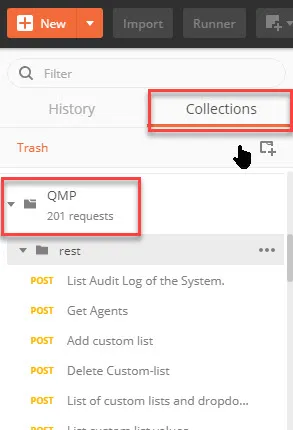
Select the Collections tab to view the API Bundle.
Authentication
Login to the application.
Go to Integration and select Open API.
In the Generate Open API section and click Generate to generate an Open API Key.
You can use this API Key in the subsequent request.
Sample API Execution
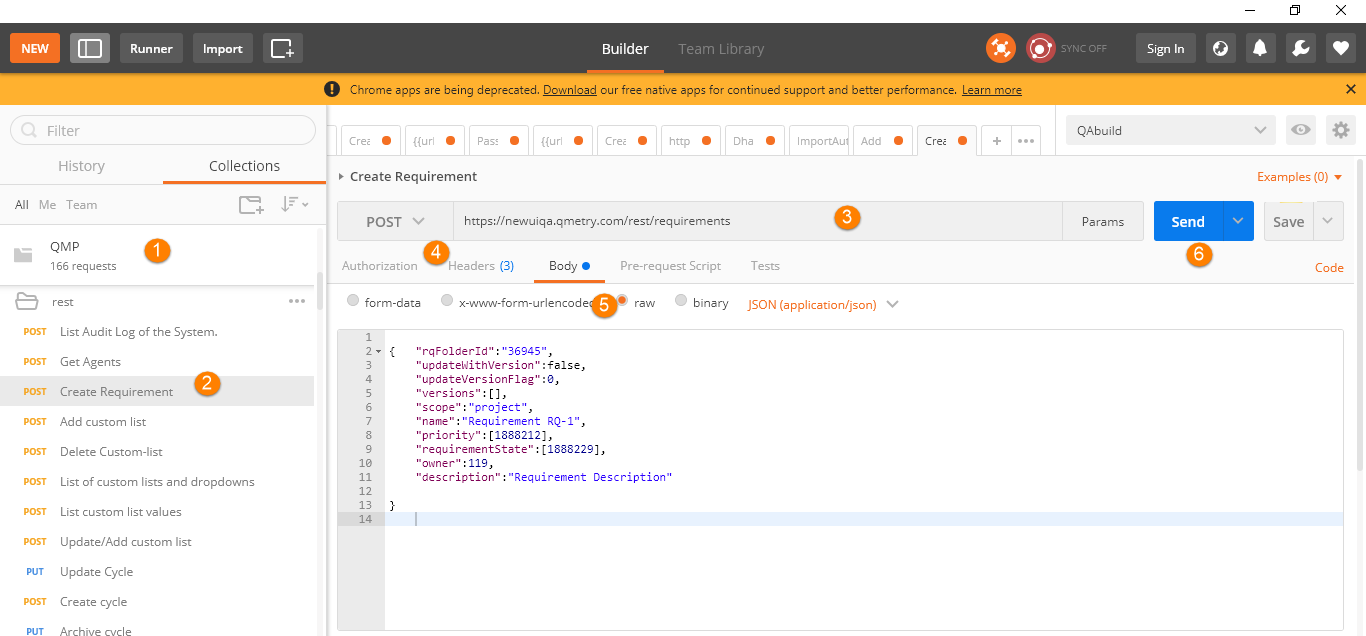 |
Expand the collection QMP under the API bundle on the left. You can view the list of endpoints covered under the module.
Select the endpoint by clicking on it.
On the right pane, click the URL and insert the API URL.
Insert the Headers parameters, and you can see the placeholder for parameter values. Replace the placeholder with the value you want to test the parameter with. You can use "project" or "scope" in the header. You can use project key, project name, project ID, and default values when you pass 'project' as a header key.
Insert Body parameters. You can see the placeholder for parameter values. Replace the placeholder with the value you want to test the parameter with.
Click the Send button at right to send the request and get a response from server.
Open API Technical Documentation
Detailed documentation on Open API provides all the details a developer would need for each of the API calls that are supported.